JMRI: Reporters Documentation
What is a Reporter?
A Reporter is JMRI's way of representing information reported back from the layout.
A Reporter can contain arbitrary text, unlike a Sensor which is only ACTIVE or INACTIVE. Each Reporter is associated with a specific source of information on the layout and makes that device's information available to the rest of JMRI.
Reporters are created automatically in certain cases, such as when an RFID Reader sees a tag referencing a specific reader for the first time. For all other uses, they must be created manually by updating the Reporter Table or via a script.
Reporters are populated automatically as noted below or manually by updating the Reporter Table, using a LogixNG or via a script.
The Reporter Table
The Reporter Table provides easy access to the contents of all Reporters that JMRI knows about. JMRI automatically creates Reporter objects for certain connection types (currently LocoNet transponders and RFID readers). There is also an "Add..." button for creating your own Reporters, either "internal" or for any MQTT connections.
Creating and Updating Reporters
Reporters can be created manually by direct entry or via script into the Reporter Table. For some hardware reporters, Reporters are automatically created in the Reporter Table. Current Report is populated and cleared by some implementations (including being cleared when the same reported object appears in another Reporter). For example, for an RFID Reporter, if an ID tag is seen at second reporter, it will be removed from the first reporter. For other types of Reporters (e.g. Internal REporters), this must be done manually or via a script.
Last Report is always set equal to the Current Report and is only changed by a new (non-blank) Current Report. This is to handle the situation where a report may not be able to sent a timely report but it is useful to know the last report received. [Advanced: See the Java documentation
The following table provides details for implementations as of JMRI Release 5.3.7 [Asterisk (*) indicates additional information below the table. Number sign (#) indicates information that had not been verified when this page was updated.] [Advanced Reference Info: Code Source is the java program defining this type of Reporter. See this diagram. ]

| Source | When Reporter Created | Current Report Populated | Current Report Cleared | Add'l Table | Code Source |
|---|---|---|---|---|---|
| Cbus | When Cbus message with new ReporterID received | With IDTag UserName or IDTag; Sensor (if associated) set Active | #Cleared when object appears in another Reporter | IDTag Table | CbusReporter extends AbstractRailComReporter |
| DCC4PC | # | With RailCom packet information | When empty RailCom packet received | RailCom Table | Dcc4PcReporter extends AbstractRailComReporter |
| Digitrax Transponding* | On receiving Block Entry with new ReporterID | From Block Entry message | On Block Exit message | # | LnReporter extends AbstractIdTagReporter |
| ECOS | # | # | # | # | EcosReporter extends AbstractReporter |
| Internal | Manually or via script | Manually or via script | Manually or via script | IDTag Table must be updated manually or via script | TrackReporter extends AbstractReporter |
| JMRI Client | # | # | # | # | JMRIClientReporter extends AbstractReporter |
| Lissy Detectors | # | # | # | # | LnReporter extends AbstractIdTagReporter |
| MQTT | Manually or via script | On receipt of IDTag, with IDTag and additional message contents | Cleared by a blank message or when object appears in another Reporter | IDTag Table entried created and updated | MqttReporter extends AbstractIDTagReporter |
| OpenLCB/LCC* | Manually or via script | On Event Report in the range specified by the Reporter SystemName | # | RailCom Table entries created and updated | OlcbReporter extends AbstractIdTagReporter |
| RFID Connection* | When IDTag message with new Reporter ID received [Also create Sensor] | With IDTag UserName or IDTag; Sensor set Active | Current Report (and Sensor) automaticly cleared after 2 seconds | IDTag Table, Sensor Table entried created and updated | RfidReporter extends AbstractIdTagReporter |
| RPS | # | # | # | # | RpsReporter extends AbstractReporter |
| Z21 (Roco) | # | # | # | # | Z21Reporter, Z21CanReporter extend AbstractRailComReporter |
Additional information:
- Digitrax Transponding: If you are using LocoNet (Digitrax) transponding, the Reporter will automatically be populated with information from Digitrax BDL168 cards with RX4 transponding sensors. When the BDL168 reports that a decoder has been seen in a transponding block or is no longer visible in the block, the corresponding Reporter will display messages like "1234 enter" and "1234 exits".
- OpenLCB/LCC: Any Event Report message falling into the range specified by the System Name will update the reporter. This will specify a DCC address and an orientation, or that the locomotive left. When the OpenLCB reporter is updated, JMRI will automatically create a Tag with the given DCC address in the RailCom table if there isn't one. The Tag will show its last seen location as the given Reporter. Caveat: it is not possible to differentiate long and short DCC addresses in the Tag entries, so 3L and 3S will be showing the same Tag.
- RFID Connection: If you are using RFID readers and have set up an RFID Connection, JMRI will automatically create and update Reporters corresponding to the name of the reader and the UID of the RFID tag seen by the named reader. The Reporter will automatically clear the "Current Report" field after 2 seconds.
- [Advanced} AbstractRailComReporter extends AbstractIdTagReporter which extends AbstractReporter
Displaying Reporter Values on Panels
Reporter contents can be displayed on panels using several different mechanisms:
Display on a Panel using Panel Editor
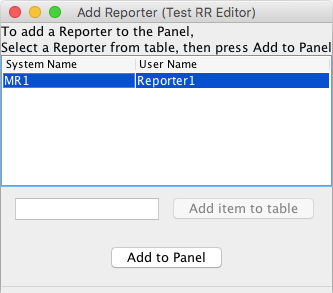
A Reporter's value can be displayed on a Control Panel via an icon. To do this:
- On the Panel Editor window for your Panel, find the "Add Reporter" button.
- In the text box next to that button, type the user name or System Name of the desired Reporter.
- Click the "Add to Panel" button. The Reporter icon will be placed on your Panel. If it's not visible, that might be because the value is currently blank; use the Reporter Table to change the value to something that will be visible.
- You can drag the icon to where you want it in the usual way.
- The pop-up menu on the icon will let you change the formatting.
Display on a Layout Panel as a Block Value
Reporters can be associated with layout blocks. When the current report of the Reporter changes, that value will be put into (or removed from) the block value. Block values can be displayed using the Layout Panel Editor.
Display Memory Variables containing Reporter contents
Using LogixNG's Reporter action , Reporter contents from fields Current Report, Last Report, and State can be copied to a memory variable or a LogixNG local variable. Memory variables can then be display on any type of Panels using the appropriate panel editor.
Saving Reporters in Layout Configuration
Reporters are kept in your layout configuration, along with Turnouts, Sensors, Signal Heads, control panel setup etc. "Report" and "Last Report" field contents are not stored. See Loading and Storing Your Work.