JMRI: Getting Started with RFID
JMRI has numerous capabilities for connecting RFID systems and for using RFID data to track trains as they move around your layout, to automate operations, and to keep track of where your rolling stock is on spurs and in yards. This document integrates information from multiple sources and adds step-by-step detail to describe some of the ways you can use RFID data within JMRI. While it does not provide information on how to decide which RFID system or connection method to use (there are multiple sources on the internet and in user groups for that), it will explain how to:
- Keep track of where RFID readers are located on your layout
- Keep track of the RFID tag number attached to various pieces of rolling stock (engines and cars/wagons)
- Be notified when a particular RFID tag is seen at a particular reader
- Display that information and/or take action based on it.
For more information on other operations and monitoring functions of JMRI, see the PanelPro and OperationsPro help pages.
This document is a WORK IN PROGRESS and will be edited and expanded based on user feedback via the JMRI and RFID user groups. It is up-to-date as of JMRI Release 5.5.4.
Contents
- Five steps to tracking trains with RFID
- Six steps to tracking cars with RFID
- Setting up RFID communication to JMRI
- JMRI Tables for RFID
- Linking PanelPro tables to display RFID Tag names on panels
- Linking OperationsPro tables to RFID info
- Shortcut: Populating the Locomotive Table from the JMRI Roster
- Automatic table information update
- Reading Further In Documentation
Five steps to tracking trains with RFID
If you have already created a Layout Editor or Control Panel Editor panel in JMRI that corresponds to your layout, here is a way to start tracking your trains as they move around the layout:
- Attach an RFID Tag to a locomotive.
- Set up a JMRI "connection" for your RFID Reader on the Connections Preferences window: [PanelPro main menu]⇒ Edit⇒Preferences⇒Connections⇒"+") [there are other ways of receiving RFID data that do not require this connection - see below]
- Run the train so the reader reads the RFID tag. JMRI will automatically create an entry in the ID Tags Table (for the RFID tag) and the Reporter Table (for the reader). These can be viewed via the main PanelPro menu selection Tool⇒Tables⇒[Reporters, ID Tags]
- Enter the locomotive ID (usually the cab number) into the "User Name" field in the ID Tag Table (right click on the "User Name" field and select Rename)
- Depending on which panel type you are using:
- If you created a Layout Editor Panel you
can see the train name for as long as it occupies a block:
- If you haven't already created track "blocks," create one in the Block Table ([PanelPro main menu]⇒ Tool⇒Tables⇒Blocks⇒[Click "Add"]). Find the new entry and assign the reader ID to it by selecting from the pulldown in the "Reporter" field. NOTE: It is recommended that you NOT check the "Current" box which would clear the block value as soon as the RFID tag moves away from the reader. See for more information.
- Assign that block to the track on the panel that corresponds to the physical location of the RFID Reader: Right-click on the track segment and select Edit; select the block name from the pulldown "Block Name".
- In the panel edit window, check the box for "Block Contents" and select the name of the block whose value you want to display.
- Shift-click on the panel where you want the value to appear. [It may be hard to see where that is if the value is currently blank so consider putting a background or border.]
- If you created a Control Panel Editor Panel
you can see the train name for as long as the reader sees the RFID tag
- Select Add Items⇒Item Palette⇒Reporter, select the reader name and drag it to the panel.
- If you created a Layout Editor Panel you
can see the train name for as long as it occupies a block:
That's it! OK, step 5 can be a few steps itself, but now you can track your train from the time it is seen at an RFID reader as it occupies different blocks around your layout. JMRI handles that part automatically!
 [Go to top of page]
Six steps to tracking cars with RFID
Another important use of RFID is tracking cars as they are moved around your operational layout, particularly on spurs and in yards. For this use, you do not need to have any type of panel defined, although these features can all be used together. Here are the steps:
- Attach RFID Tags to as many cars as you want.
- Set up a JMRI "connection" for your RFID Reader on the Connections Preferences window: [PanelPro main menu]⇒Edit⇒ Preferences⇒Connections⇒"+") [there are other ways of receiving RFID data that do not require this connection - see below]
- Enable RFID tracking in OperationsPro tables via the OperationsPro "settings" selection: from the main PanelPro menu, select
Tools⇒OperationsPro⇒
Settings⇒Tools⇒Options⇒ [scroll to "Options" near the bottom of the page] . Click the check box for "Identification Tag Fields". - Run the cars past the connected RFID reader. JMRI will automatically create entries in the ID Tags Table (for the RFID tags) and the Reporter Table (for the reader). These can be viewed via the main PanelPro menu selection Tool⇒Tables⇒[Reporters, ID Tags]
- Go to the OperationsPro⇒Locations table. If you have locations in the table already, select Edit for the appropriate location entry, or select Add Location at the bottom of the screen to get to the "Edit Location" window. Find the "IdTagReporter at this Location" field and the pull-down list will display Reporter names of RFID readers that have previously been reported (or have been entered manually). Select the one that is at your specified location and press "Add Location"or "Save Location".
- Go to the OperationsPro⇒Cars table and check the "RFID" box near the bottom. You will now see columns "Reported Location," "Reported Date", and "RFID Tag". If you have cars in the table already, selecte Edit for the appropriate car entry, or select Add at the bottom of the screen, to get to the "Edit Car" window. Find the "RFID" field and the pull-down list will display ID Tag names for RFID tags that have previously been seen by a reader (or have been entered manually). Select the one that is attached to your car and press "Add Car" or "Save" . [You can optionally add the car number as the ID Tag "User Name" in the ID Tag Table.]
That's it! OK, steps 5 and 6 can be a few steps themselves, but now you can track your cars as they move from one reader in one location to another around your yard and your layout. See below Linking OperationsPro tables to RFID info. Another example of JMRI's capability with RFID.
 [Go to top of page]
Setting up RFID communication to JMRI
There are several ways that JMRI can receive information from your RFID readers:
-
If your readers communicate via direct serial (USB) connection or TCP/IP, set up an "RFID Connection" on
the Preferences Connections page: [PanelPro main menu]⇒Edit⇒Preferences⇒Connections⇒"+"
[Select "RFID" as "System Manufacturer"].
JMRI will then create a Reporter Table entry automatically when a reader sends
a properly formatted message through the indicated connection. You will also see a new main menu item for RFID
which gives you access to a command monitor and a tag monitor .

- If your readers communicate via MQTT Reporter messages, set up an "MQTT Connection" on the Preferences Connections page (or use an existing one - it is not necessary to create a new MQTT Connection for each MQTT device): [PanelPro main menu]⇒ Edit⇒Preferences⇒Connections⇒"+" [Select "MQTT" as "System Manufacturer"]. Before MQTT Reporter messages will be recognized by JMRI, you must manually create an entry in the Reporters Table for each reader. Enter the "System Name" to be topic component used in the MQTT messages. [See the MQTT help pages for more information.]
- Since JMRI 5.11.3
If your readers communicate via LocoNet, JMRI will create a Reporter Table entry automatically
when a (new) reader sends a properly formatted message through the indicated connection.
For each new RFID tag passing over one of the Reporters, a new ID Tag entry is added to the ID Tag Table. - Other methods may create Reporter Table entries automatically or require you to create them manually. See Reporters Documentation for more information.
Using JMRI Version 5.5.4 or earlier, it is recommended NOT to add User Names in the Reporter Table as this causes some confusion on JMRI startup. This issue has been documented in the JMRI code repository.
[Go to top of page]JMRI Tables for RFID
JMRI stores information in tables that can be saved to files on your computer. All JMRI tables are available via the user interface of all JMRI systems (PanelPro, DecoderPro, and OperationsPro). Most tables used by PanelPro functions are stored in a combined xml file (sometimes called a "panel file" or "panel and table file") while OperationsPro and DecoderPro table contents are stored separately in individual xml files (see Loading Storing Your Work for more information).
Depending on how you intend to use RFID data, these are the tables you may encounter:
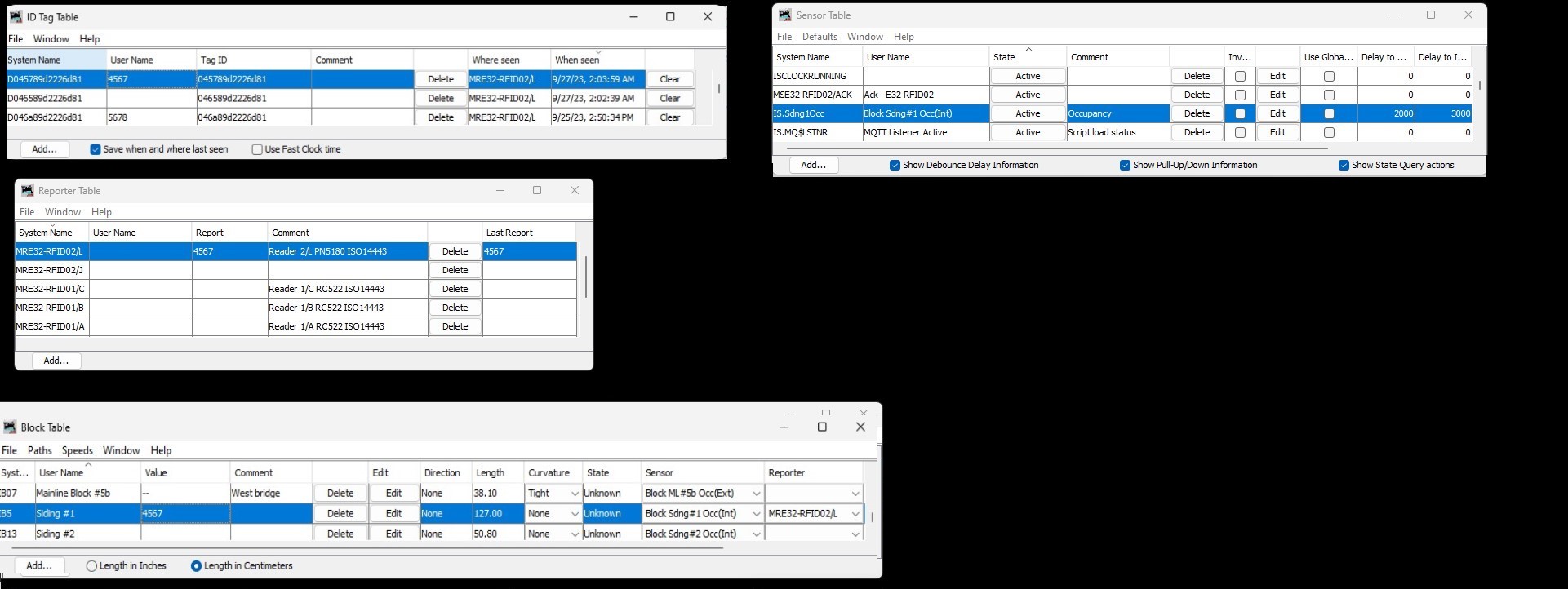
- PanelPro Tables: viewable via the PanelPro menu selection Tool⇒Tables⇒
[select table name]
Reporter Table: one entry per RFID reader necessary to recognize each RFID reader. Entries may be created automatically the first time a message is received from an RFID reader depending on the communications protocol you use (see Reporters help page). If an entry is not created automatically (or even if it would be), you can create an entry manually. The Reporter Table contents is saved when you do a File⇒Store ALL...) from the main PanelPro menu or elsewhere. [NB: The Reporter Table is also used for other kinds of reports from the layout, such as transponder messages and real-time positioning system information , hence its more general name.]
ID Tag Table: entries are created and saved automatically when an ID tag is seen at a reader. See also: ID Tag Table help.
Block Table: Blocks can be defined for groups of track on Layout Editor Panels. An RFID reader can be assigned to a Block so that the ID Tag seen by that reader can be displayed on that panel. This is known as the "Block Value". Block Table contents is saved when you do a File⇒Store ALL...) from the main PanelPro menu or elsewhere. See Block Table help page.
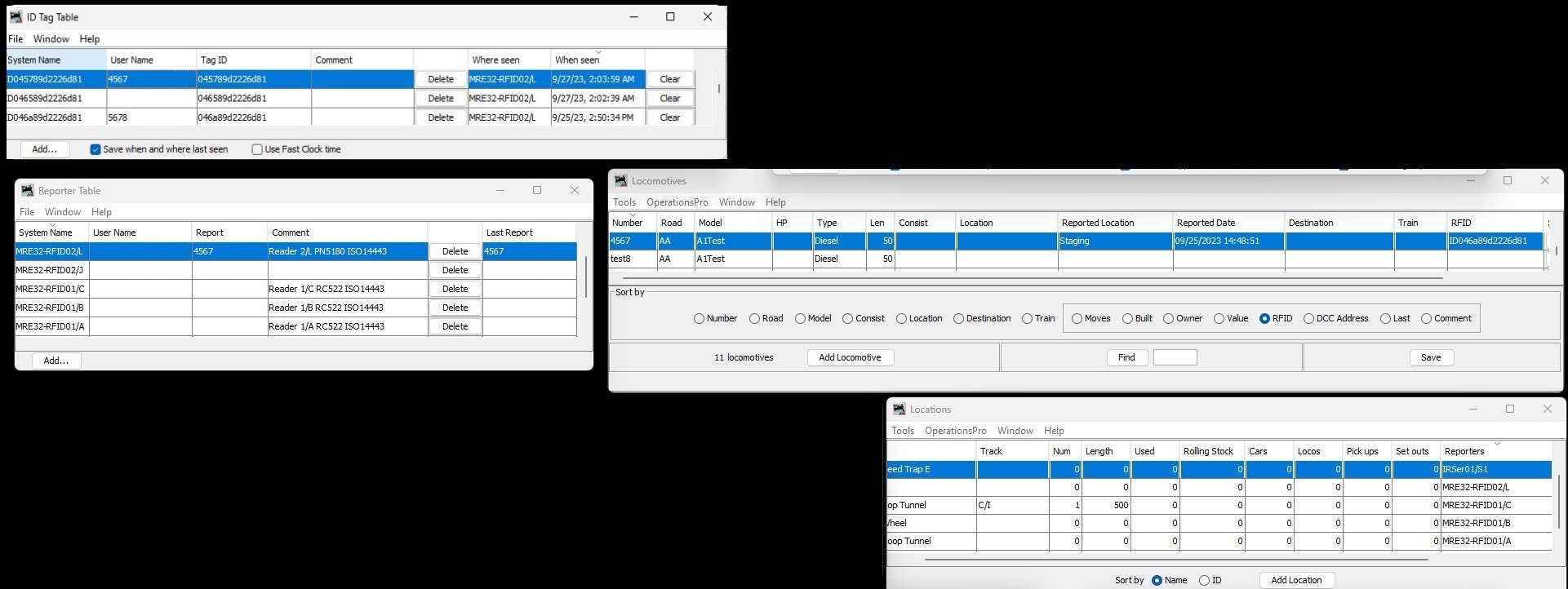
- Operations Tables: viewable via the main OperationsPro menu selection
OperationsPro⇒[select table name]
Location Table: this table, if used, has entries for track locations around your layout. Entries can be created for locations at which you have RFID readers. The Location Table contents is saved automatically to a disk file.
Locomotive Table, Car Table: these tables, if used, have entries for your rolling stock. Entries can be created for locomotives or cars (wagons) to which you have attached RFID tags. The Locomotive Table and the Car Table contents are saved automatically into separate files on disk.
- DecoderPro Table viewable when via the PanelPro menu selection: Roster⇒Roster
Roster: contains one entry per locomotive in your fleet. While the Roster contains a lot of information about each, it does not currently (as of JMRI Version 5.5.4) have a specific field for RFID tag. However, the Roster can be used to populate the Locomotive Table and RFID tag numbers can be entered there. The Roster contents is saved when you make changes and select File⇒Save or "Save to Roster". The Roster contents is saved into a separate xml file.
Linking PanelPro tables to display RFID Tag names when tags are read
While JMRI is an integrated set of systems, different functions were implemented at different times by different people. This means that some capabilities are not fully linked across functions and some data may appear to be in the "wrong" place, missing, or replicated (as for example, with the DecoderPro Roster and the OperationsPro Locomotive Table). As a result, some types of data linking has to be done manually to fully use all the JMRI functionality:
- To see the name or number of a locomotive or car, you have to associate that number with an RFID tag number.
- To see the name or number of a locomotive or car appear on your Layout Editor Panel when it is occupying a block that has an RFID reader, you have to link the RFID reader ("Reporter Name") to the Block Table and put the "Block Value" on the Layout Panel.
- To see the name or number of a locomotive or car appear on your Control Panel Editor Panel when it is in front of an RFID reader, you have to put the "Reporter" (RFID reader name) on the CPE Panel.
This section expands on the information above to do this linking. [The following section tells you how to link OperationsPro tables.]
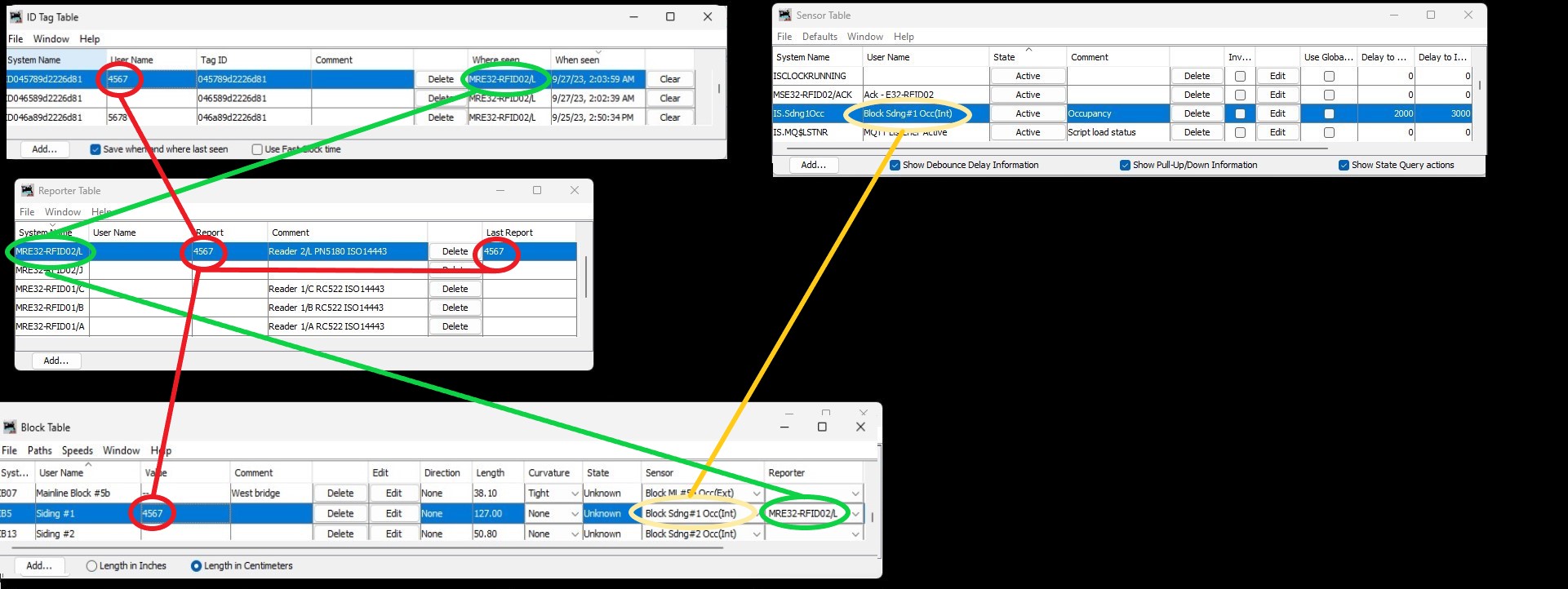
To identify which RFID tag is attached to which piece of rolling stock, use the "User Name"
field in the ID Tag Table. Enter the locomotive or car number (must be unique) into the
"User Name" by right-clicking on the field and selecting Rename). Other choices
are Remove (useful if you mistype a number) or Move User Name if you are
moving an RFID tag to a different piece of rolling stock. [If you are just getting started, a
jython script in the examples
library will open a window for you to enter user names when RFID tags are encountered for the first time.]
Displaying on Layout Editor Panels
If you created a Layout Editor Panel you can see the train name for as long as it occupies a block by linking RFID readers to blocks on the panel. Repeating instruction 5 above:
- If you haven't already created track blocks, create them in the Block Table for each block that you want to associate with an RFID reader (PanelPro menu selection: Tool⇒Tables⇒Blocks⇒[Click "Add"] ).
- Find the new entry and assign the reader ID to it by selecting from the pulldown in the "Reporter" field. NOTE: It is recommended that you NOT check the "Current" box which would clear the block value as soon as the RFID tag moves away from the reader. If you do, then you will only see the locomotive or car name when the RFID tag is actually reported by the reader. See for more information.
- Assign that block to the track on the panel that corresponds to the physical location of the RFID Reader: Right-click on the track segment and select Edit; select the block name from the pulldown "Block Name".
- In the panel edit window, check the box for "Block Contents" and select the name of the block whose value you want to display.
- Shift-click on the panel where you want the value to appear. [It may be hard to see where that is if the value is currently blank so consider putting a background or border.]
Alternatively, you can use a script such as ReporterFormatter.py to parse the information in the Reporter and copy what you want into a Memory. That Memory can then be displayed on a Layout Editor Panel.
Displaying on a Control Panel Editor Panel
If you created a Control Panel Editor Panel you can only display the "reports" from Reporters, i.e. the train name associated with an RFID tag, for as long as the reader reports that RFID tag. Once the reader report clears, the "report" is blank and the CPE Panels will not display the name. Unfortunately, CPE Panels do not have a way to display "Blocks" and "Block Values" but have their own concept of "Occupancy Blocks" (part of the Dispatcher capability) which do not link to RFID information.
- In the CPE Panel window, select Add Items⇒Item Palette⇒Reporter, select the reader name and drag it to the panel.
[Go to top of page]
Linking OperationsPro tables to RFID info
To use RFID information with the Locations, Locomotive, and Car Tables, you first enable the assignment of ID Tags. This is done via the OperationsPro "settings" selection. Start on the main PanelPro menu and go to Tools⇒OperationsPro⇒Settings⇒Tools⇒Options⇒ [scroll to "Options" near the bottom of the page]. Click the check box for "Identification Tag Fields". If you now open the Locations Table, you will see an additional column labeled "Reporters" (for entering RFID Reader names). If you open either the Locomotive or Car Tables, you will see an "RFID" option in a box near the bottom of the window. Clicking on that will display the additional RFID information fields. Note that this box must be re-checked each time the table windows are opened (i.e. it is not "sticky", as of JMRI Version 5.5.4).
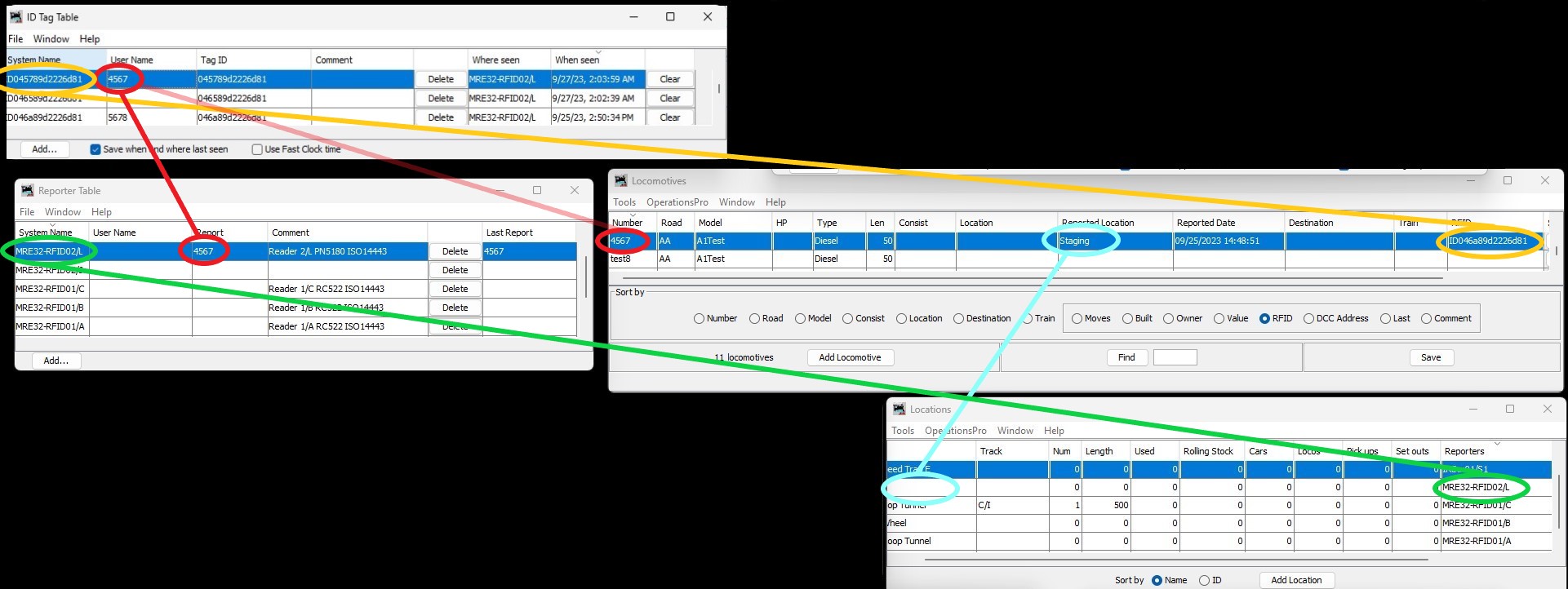
Operational information related to RFID will be filled into the various tables automatically by JMRI as RFID tags are read around the layout -- once you have entered the linking information between tables:
- RFID Reader names ("Reporter" names) can be linked to Locations
- RFID tags ("ID Tag" names) can be linked to Locomotives or Cars
The Edit Location window allows you to select a Reporter to associate with a particular location
(OperationsPro⇒Locations⇒["Edit" a particular entry]).
The RFID reader name can be added to the field "IdTag Reporter at this Location" on that window
from the drop down list. Readers listed in the Reporters Table will be listed.

The Edit Locomotive and Car windows allow you to select an RFID tag to associate with a particular piece of rolling stock (OperationsPro⇒(Locomotives, Cars)⇒ ["Edit" a particular entry]). The RFID tag ID can be added to the field "RFID" on that window from the drop down list. ID Tags that have previously been seen by a reader or been entered manually will be listed.
If your RFID reader is connected to JMRI via a Preferences RFID Connection, you can also
use another feature of JMRI. You will see "RFID" on the main PanelPro menu. Selecting that gets a drop-down menu
including "RFID Monitor".
As a tag is read, this will show the ID tag, and, if that tag ID has been associated
with a car in the Car Table, it will show the "Road Name", "Car Number", and the "Location" associated with
that car. If the tag does not match a known car, a button will pop up a list of cars that have not been associated
with a tag, to allow you to set that association.
[If you are just starting out with many ID Tags being seen for the first time, a jython script to aid in this process is available at https://jmri.org/jython/AssignIdTagToRS.py. This script will pop up a window when a new or changed ID Tag Table entry is encountered and will automatically populate the Locomotive or Car Table if you check the appropriate box. This script will work regardless of how your RFID reader communicates with JMRI.]
Short cut: Populating the Locomotive Table from the JMRI Roster
If you have not yet populated the Locomotive Table, JMRI provides a short
cut. From the Locomotive Table, select Tools⇒Locomotive Roster⇒Import
from JMRI Roster. Select which Roster Group or "All Entries" in the popup window, and JMRI will
create entries for the listed locomotives. Note that certain fields may be truncated ("Owner") and
others may need editing (e.g. road name or model), but it is a start.
BE CAREFUL:
if you add the wrong roster group, or you add the same group a second time, JMRI will add these
additional entries to the table. Luckily, you can find the previous saved file as "OperationsLocomotiveRoster.xml.bak"
in the "operations" subdirectory of the user files location.
Automatic table information update
If the linking steps described above have been completed successfully, you are good to go! Here is what will happen when RFID tag IDs are sent to JMRI by your readers:
ID Tag Table: If the ID Tag has been seen before, JMRI will update the "When Seen" and "Where Seen"
columns [see next step] in the corresponding ID Tag Table entry. If the ID tag has not been seen
before, JMRI will create an entry, prefixing "ID" to the tag ID to create a "System Name", and will also put
just the tag ID in the "Tag ID" column.
The "User Name" column will be left blank and you can fill it in (or not) at any time.
[A jython script to aid in this process is available at
https://jmri.org/jython/AssignIdTagToRS.py]

Reporter Table: If an entry exists in the Reporter Table for the RFID Reader received, the "Report"
and "Last Report" columns will be filled in for the appropriate entry.
If an entry does not exist, and the communication method is LocoNet or an RFID Connection method, an entry
will be created and these fields will be filled in.

Locomotive or Car Table: If the RFID Reader is listed in either the Locomotive or the Car Tables,
the "Reported Date" (and time) column will be updated for the appropriate entry. If the RFID Reader is
also associated with a particular Location in the "Locations Table", then the "Reported Location" column
in the Locomotive or Car Table will also be filled in.


Reading Further In Documentation
Other JMRI help pages that might be of interest:
OperationsPro Tables with RFID information: