LogixNG Reference - Chapter 6
Expression Descriptions
The expression descriptions are grouped by the socket type and category.
since 5.1.3The Call Module expression has been moved from the Other category to the Flow Control category.
- Digital expression
- Analog expression
- String expression
- Generic Expression
Expression dialogs
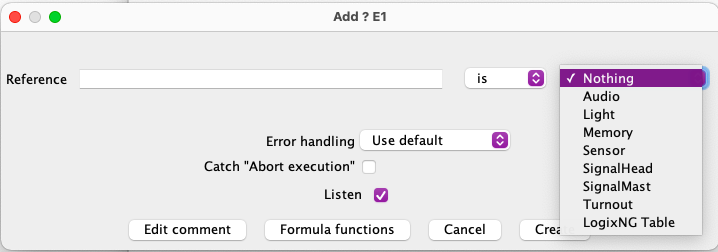
When the category and type has been selected, the detail expression dialog will be displayed. The content of the dialog will vary depending on the category and type. The typical digital expression item dialog is described below.
The dialog for adding and editing expressions consists of an upper part that contains the item and the states for that item. The lower part is common to all expressions.

The Edit screen is the same except for the title, the Create button and the current content will be in the fields.
The left section is normally used to select the item, such as a turnout or a sensor. The right section is the state to be checked. The center section will normally have a is / is not combo box. The default mode will be to use the Direct tabs.
See Reference, Local Variable and Formula for details about the other tabs.
The lower section contains a standard set of items
- Error Handling
- If Use default is selected, the value in Preference will be used. For other options see error handling.
- Catch "Abort execution"
- If the error handling (see previous) for any child node is set to Abort execution, a parent node should have this option checked. This lets the parent node handle the error.
- Listen
- Normally, any change to an expression item should trigger the true/false evaluation. Sometimes an expression item should participate in the evaluation but not trigger it. The Listen checkbox is used to control the trigger state.
- Edit comment
- Each expression can have a comment. The comment dialog has a multiline text area. Click OK to save the comment.
- Formula functions
- These are explained in the Formula chapter.
- Cancel
- Close the dialog without applying any changes.
- Create/OK
- Save the new expression or the changes to an existing expression.
Digital expression :: Item
- Audio
- Block
- Clock
- Conditional
- Dispatcher
- Entry/Exit
- Light
- Local variable
- Memory
- OBlock
- Power
- Reference
- Reporter
- Script
- Section
- Sensor
- Sensor Edge
- Signal head
- Signal mast
- Transit
- Turnout
- Warrant
Audiosince 5.5.4
Returns true if the selected audio object has the indicated state. The drop-down list contains the defined audio listeners and audio sources.

The Check only on change option is used to change the logic of the expression evaluation. When the option is not enabled, the normal evaluation occurs: Does the current state match the indicated state. When the option is enabled, the evaluation becomes: Has the current state changed to the indicated state since the last check.
Block
- Occupied: Evaluate to true if the sensor assigned to the block is active.
- not Occupied: Evaluate to true if the sensor assigned to the block is inactive.
- some other state: Evaluate to true if the state is unknown, inconsistent or undetected.
- Allocated: Evaluate to true if the related layout block has use extra color enabled.
- equal to: Evaluate to true if the value of the block matches a string value or a reference value, which is typically a memory variable.
Clock
- Fast clock: Evaluate to true if the fast clock time is between two hh:mm values.
- System clock: Evaluate to true if the system clock time is between two hh:mm values.
Conditional
If the conditional named is used in more than one Logix, the results are unpredictable.
- False: Evaluate to true if the state of the specified conditional is false.
- True: Evaluate to true if the state of the specified conditional is true.
- Other: Evaluate to true if the state of the specified conditional is unknown or inconsistent.
Dispatcher
A Dispatcher train only exists from the time it is created until it is terminated. LogixNG uses the Dispatcher TrainInfo file to refer to a potential Dispatcher train. See the Saving and Retrieving Active Train Information section at Activate New Train. The train is started using the LogixNG Dispatcher Load train from train info file Action. If the related train does not exist when the expression is evaluated, the result will be false. That means a false result is either actually false or the train does not exist.
Train Mode:
- Automatic
- Dispatched
- Manual
Train Status:
- Running
- Paused
- Waiting
- Working
- Ready
- Stopped
- Done
Entry/Exit
Evaluate if an Entry/Exit pair has a specified state.

- Inactive
- Evaluate to true if the state of the specified entry/exit pair is inactive.
- Active
- Evaluate to true if the state of the specified entry/exit pair is active.
- Other
- Evaluate to true if the state of the specified entry/exit pair is unknown or inconsistent.
- Reversed
- Evaluate to true if the specified entry/exit pair is active and reversed. A reversed route occurs when the sensors for a bidirectional entry/exit pair are selected in the reverse order. The evaluation is triggered by a change to the active/inactive state of the entry/exit pair.
- Bidirectional
- Evaluate to true if the specified entry/exit pair has the Both Way option enabled in the entry/exit pair table. The evaluation is triggered by a change to the active/inactive state of the entry/exit pair. Changes to the Both Way option do not trigger evaluation.
Light
- Off: Evaluate to true if the state of the specified light is off.
- On: Evaluate to true if the state of the specified light is on.
- Other: Evaluate to true if the state of the specified light is unknown or inconsistent.
Local variable
Compares the value of the specified local variable to either a string, a memory variable, another local variable or a table cell. See Simplified Table Cell Reference for details on defining the table cell. Evaluates to true if the comparison is true.
- is less than
- is less than or equal
- is equal to
- is greater than or equal to
- is greater than
- is not equal to
- is null
- is not null
- does match regular expression
- does not match regular expresson
The Type indicates the how the comparison process works.
- Number or string — The comparison is based on the characteristics of the objects.
- String — The comparison is based on the string values of the objects.
- Number — The comparison is based on the numeric values of the objects. This can result in an exception if any of the values is not a number.
For information about regular expressions, see: https://docs.oracle.com/javase/7/docs/api/java/util/regex/Pattern.html
Memory
Compares the value of the specified memory variable to either a string, another memory, variable, a local variable or a table cell. See Simplified Table Cell Reference for details on defining the table cell. Evaluates to true if the comparison is true.
- is less than
- is less than or equal
- is equal to
- is greater than or equal to
- is greater than
- is not equal to
- is null
- is not null
- does match regular expression
- does not match regular expresson
The Type indicates the how the comparison process works.
- Number or string — The comparison is based on the characteristics of the objects.
- String — The comparison is based on the string values of the objects.
- Number — The comparison is based on the numeric values of the objects. This can result in an exception if any of the values is not a number.
For information about regular expressions, see: https://docs.oracle.com/javase/7/docs/api/java/util/regex/Pattern.html
OBlock
- Unoccupied: Evaluate to true if the specified oblock is not occupied.
- Occupied: Evaluate to true if the specified oblock is occupied.
- Allocated: Evaluate to true if the specified oblock is allocated.
- Running: Evaluate to true if the specified oblock is running (is path occupied in Logix).
- OutOfService: Evaluate to true if the specified oblock is out of service.
- Dark: Evaluate to true if the specified oblock is dark.
- TrackError: Evaluate to true if the specified oblock has a track error (is power error in Logix).
Power
- On: Evaluate to true if the power state is on.
- Off: Evaluate to true if the power state is off.
- Idle: Evaluate to true if the power state is idle. since 5.1.6
- Unknown: Evaluate to true if the power state is unknown.
- On or Off: Evaluate to true if the power state is on or off. Previously this was the Other state.since 5.1.6
The Ignore unknown state option is used to bypass the the unknown state. This can occur when transitioning between the on and off states.
Reference
If there is a possibility that a reference will refer to an item that does not exist or it is the wrong item type, the Reference expression can test that case and return true or false.
An example would be a table that has optional cells. A table for a staging yard ladder will have a variable number of turnouts based on the selected track.
Enter the reference to be checked and specify the type.
Reporter
Compare the content of one of the three Reporter data fields to a string, a memory variable or a local variable. See the Memory description for a list of the comparisons.
- Current Report: The current value unless the hardware says there is nothing to report. In that case the value will be null.
- Last Report: Normally the current report and last report are the same. If the current report is null, this will be most recent valid report. If no report has ever been received, this will be null.
- State: A number that represents the last report.
Note: The meaning of the reports and the state number are defined by originating hardware.
Script
A script expression calls a Jython or ECMAScript script. The script context contains a
result boolean object. When the script is done, it does a
result.setValue(x) where x is, or evaluates to, True or False.

The Register listener and Unregister listener options are used if the script is to run based on some other JMRI event. For example, the following register command will cause the script to be run every fast minute.
memories.getMemory('IMCURRENTTIME').addPropertyChangeListener('value', self)
Select the type of script. The supported script types are Jython Files and ECMAScript Files.
For details on accessing LogixNG objects from a script see Chapter 13 - Jython Scripting Support.
Sectionsince 5.3.5
- Free: Evaluate to true if the state of the selected section is not being used by a transit.
- Forward: Evaluate to true if the selected section is being used by a transit and is set for the forward direction.
- Reverse: Evaluate to true if the selected section is being used by a transit and is set for the reverse direction.
Sensor
- Inactive: Evaluate to true if the state of the specified sensor is inactive.
- Active: Evaluate to true if the state of the specified sensor is active.
- Other: Evaluate to true if the state of the specified sensor is unknown or inconsistent.
Sensor Edgesince 5.1.7
Returns True if the state of the sensor goes from one predefined state to another, for example from "Active" to "Inactive".

If the option Only true on the first occurrence is selected, the expression will only return True once and there after return False. This is useful if you want the expression to return True only the first time it is evaluated.
Signal head
- has appearance: Evaluate to true if the specified signal head appearance matches the selected appearance.
- has not appearance: Evaluate to true if the specified signal head appearance does not match the selected appearance.
- is lit: Evaluate to true if the state of the specified signal head is lit.
- is not lit: Evaluate to true if the state of the specified signal head is no lit.
- is held: Evaluate to true if the state of the specified signal head is held.
- is not held: Evaluate to true if the state of the specified signal head is not held.
Signal mast
- has aspect: Evaluate to true if the specified signal mast aspect matches the selected aspect.
- has not aspect: Evaluate to true if the specified signal mast aspect does not match the selected aspect.
- is lit: Evaluate to true if the state of the specified signal mast is lit.
- is not lit: Evaluate to true if the state of the specified signal mast is no lit.
- is held: Evaluate to true if the state of the specified signal mast is held.
- is not held: Evaluate to true if the state of the specified signal mast is not held.
- is permissive sml disabled: Evaluate to true if the specified signal mast has permissive sml disabled.
- is not permissive sml disabled: Evaluate to true if the specified signal does not have permissive sml disabled.
Transitsince 5.3.5
- Idle: Evaluate to true if the state of the selected transit is idle. This indicates that the transit is not been assigned to an active train.
- Assigned: Evaluate to true if the selected transit is assigned to an active train by the Dispatcher tool.
Turnout
- Closed: Evaluate to true if the state of the specified turnout is closed.
- Thrown: Evaluate to true if the state of the specified turnout is thrown.
- Other: Evaluate to true if the state of the specified turnout is unknown or inconsistent.
Warrant
- Route free: Evaluate to true if the specified route is available.
- Route occupied: Evaluate to true if the specified route is occupied.
- Route allocated: Evaluate to true if the specified route has been allocated.
- Route set: Evaluate to true if the specified turnout has been set.
- Train is running: Evaluate to true if the specified route has a train running.
Digital expression :: Common
And
And evaluates the child expressions and if all of them returns true, the And expression returns true as well.
Antecedent
The Antecedent expression is mainly included to make import from Logix to LogixNG simple. It works exactly as Antecedent in Logix. It has a number of child expressions and an antecedent that defines how the evaluation of the expressions should be done. Each child expression is referenced in the antecedent by R1, R2, R3, ..., there R1 is the first child expression, R2 is the second child expression, and so on. Note that this differs from other expressions in LogixNG. Other LogixNG expressions use the socket name, but since the Antecedent expression is included to work as Antecedent works in Logix, the antecedent has been kept from Logix Antecedent as well. Note: Antecedent is included for compatibility with Logix but it's recommended to use Formula instead. Formula is much more powerful, uses the socket names and also works with numbers and strings.
Digital Formula
Formula is the next generation of Antecedent. It supports many operators, like ==, !=, <=, >=, <, >, +, -, *, / and %. It supports local variables, memories and functions. It supports all the types of expressions, digital, analog and string expressions. See Generic expression for details on the result of merging the other expressions.
Not
The Not expression has one child expression and answers true if the child expression answers false, and false if the child expression answers true.
Or
Or evaluates the child expressions and if at least one of them returns true, the Or expression returns true as well.
Timer
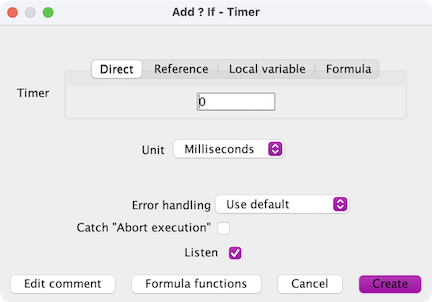
The Timer expression returns False until some time has passed. It then returns True once and the timer starts again. This expression is intended to be used together with the Sequence action. This makes it possible to have sequence steps based on time durations.
Digital expression :: Flow Control since 5.1.3
Call module
Call a module and and return its true/false response. See Chapter 10 - Modules
Digital expression :: LocoNet
Slot Usage
Evaluate the LocoNet slot usage.

Digital expression :: Linux
Linux Line Powersince 5.3.4
The Linux upower command line tool is used to determine if external power is active. For example, if the external power is removed, then this tool can be used to do a graceful shutdown before the battery dies.
The expression runs the upower command line tool every five seconds. If it detects a change, it triggers the execution of the ConditionalNG.
When the expression is added, the upower command is checked to make sure it is present and working. A warning message will be displayed if there is an issue.

Digital expression :: Other
- Always false
- Always true
- Connection name
- File as flag
- Hold
- Last result of digital expression
- Log data
- Trigger once
Always false
The False expression always answers false.
Always true
The True expression always answers true. This expression is commonly used as a child to the Trigger Once expression.
Connection namesince 5.1.3
The Connection name expression returns true if the selected manufacturer and connection type match a connection in Preferences ⇒ Connections.
This can be used to determine whether JMRI is using a real layout connection or a simulated connection. For example, a startup LogixNG can set an internal sensor that indicates the simulation state. Other LogixNG definitions can then check the state to determine what actions are appropriate. A good example is whether the Simulate turnout feedback action should be used.
The connection name is selected by choosing the manufacturer and then a connection name from the connection list.

File as flagsince 5.5.2
The File as flag expression checks for the existence of a file. If the
file exists, the expression returns true, otherwise it returns false
. When the file is found, it can be kept or deleted. Normally the file will be
created by some process that needs to notify JMRI about an event. For Linux and macOS,
touch filename works from the command line or a script.
The are several options for Windows, such as
copy nul filename,
type nul > filename, or
echo > filename.

The file selector is used to create the path to the file and file name. The default path is the user files location. If the file does not currently exist, select a different file and then replace the file name with the planned file name before creating the expression.
The default file action when the file is found is Keep file. The Delete file action can be selected which would be useful for repetitive external events.
Example
The LogixNG Timer action is used to run the File as flag expresson every 5 seconds. When the file exists, an internal sensor is set Active. The file is deleted and the timer loop resumes running File as flag. The sensor is used to trigger another process which handles the event. For simple actions, Then could be used to do the work.
Configure the Timer action.

Create the LogixNG.

Hold
The Hold expression has two child expressions, one trigger expression and one hold expression. For this expression to become true, both the trigger expression and the hold expression must answer true. But then it stays true as long as the hold expression stays true.
Last result of digital expression
Each digital expression retains its most recent true/false state. This can be checked if the expression has a user name. See Chapter 3. Select the user name from the combo box.

Log data
The Log data expresson works the same as the Log data action. See Log data action for details.
Since this is an expression, it must return true or false. The window for creating the expression version includes a combo box for selecting True or False
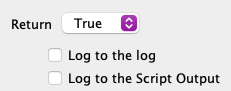
True is recommended for And expressions and False for Or expressions.
Trigger once
The TriggerOnce expression answers true one single time and then false until its child expression becomes False and then True again.
Most often, the TriggerOnce expression will have the expression Always true as its child and it will then answers true one single time and then false until JMRI is restarted.
Analog expression :: Item
- Analog constant
- AnalogIO
- Local variable as analog value
- Memory as analog value
- Minutes since midnight
Analog constant
Return a constant as an analog value.
AnalogIO
AnalogIO reads the value of an AnalogIO and returns its value. There is currently two items that can be used with AnalogIO:
- Variable lights
- Meters
Some connections supports meters, for example current and/or voltage meters. This depends on the hardware connected to JMRI. An example is the Roco Z21 that has a current and voltage meter that JMRI can listen to.
Local variable as analog value
Return value of a local variable as an analog value.
Memory as analog value
Return value of a memory variable as an analog value.
Minutes since midnight
Return the number of minutes since midnight using either the fast clock or the system clock.
Analog expression :: Common
Analog formula
Return the result of a formula as an analog value.
String expression :: Item
Memory as string value
Return the value of a memory variable as a string value.
String constant
Return a constant as a string value.
StringIO as string value
since 5.11.2Return the value of a StringIO as a string value. StringIOs are defined in the StringIO table.
This can be used to provide an argument for an If statement. The following example tests a StringIO value for a match.

String expression :: Common
String formula
Return the result of a formula as a string value.
Generic expression
The Digital Formula expression can use any of the other expressions. This means the lists from the other sockets and categories are combined.
The combined Item list:
- Analog constant
- AnalogIO
- Audio
- Block
- Clock
- Conditional
- Dispatcher
- Entry/Exit
- Light
- Local variable
- Local variable as analog value
- Memory
- Memory as analog value
- Memory as string value
- Minutes since midnight
- OBlock
- Power
- Reference
- Reporter
- Script
- Section
- Sensor
- Sensor Edge
- Signal head
- Signal mast
- String constant
- StringIO as string value
- Transit
- Turnout
- Warrant
The combined Common list:
The Flow Control, LocoNet and Other lists are the same as Digital expression.