JMRI Code: Building with IntelliJ IDEA
IntelliJ IDEA Community Edition (available from www.jetbrains.com/idea/) makes a great platform for
working with JMRI and Java on macOS, Windows and *nix.
Here we describe working with version 2023.x and up.
JMRI developers use Git for source control. Source control using Git is including as part of the IntelliJ IDEA download. For more information for getting the JMRI source, see JMRI: Getting the Code.
These instructions were first written and tested using IntelliJ IDEA 16 Community Edition (CE). The current version is 2024.3 and the Community Edition is still free. This page has been updated to reflect the 2022 version
Installing IntelliJ IDEA
Preparations
- Go to GitHub.com and create an account.
- In GitHub web, go to the JMRI/JMRI repo and "Fork" the JMRI repository to your own remote copy. To do this, log on to your account at GitHub.com and navigate to the JMRI repository https://github.com/JMRI/JMRI In the upper right-hand corner of the page you will find a button labeled "Fork". Press the "Fork" button to create your own repository of the JMRI source. (see Getting the Code).
After downloading and running the installer for your OS, configure the IntelliJ
application as follows:
Set Preferences
Start IntelliJ and choose "Preferences..." from the application menu (macOS) or "Settings" from the File menu (Win).
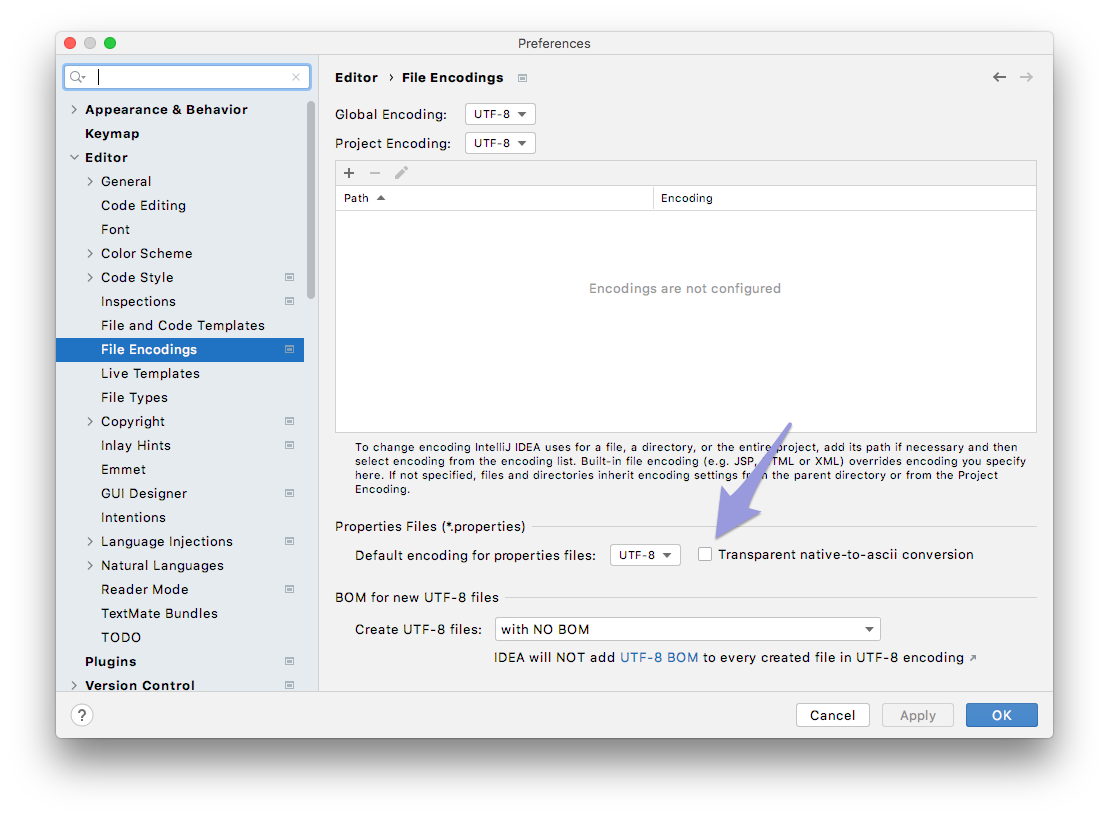
- since 5.0 From the Editor -> File Encodings tab, uncheck
"Transparent native-to-ascii conversion", because Java 11 allows UTF-8 character encoding for
those special accented letters found in many languages:
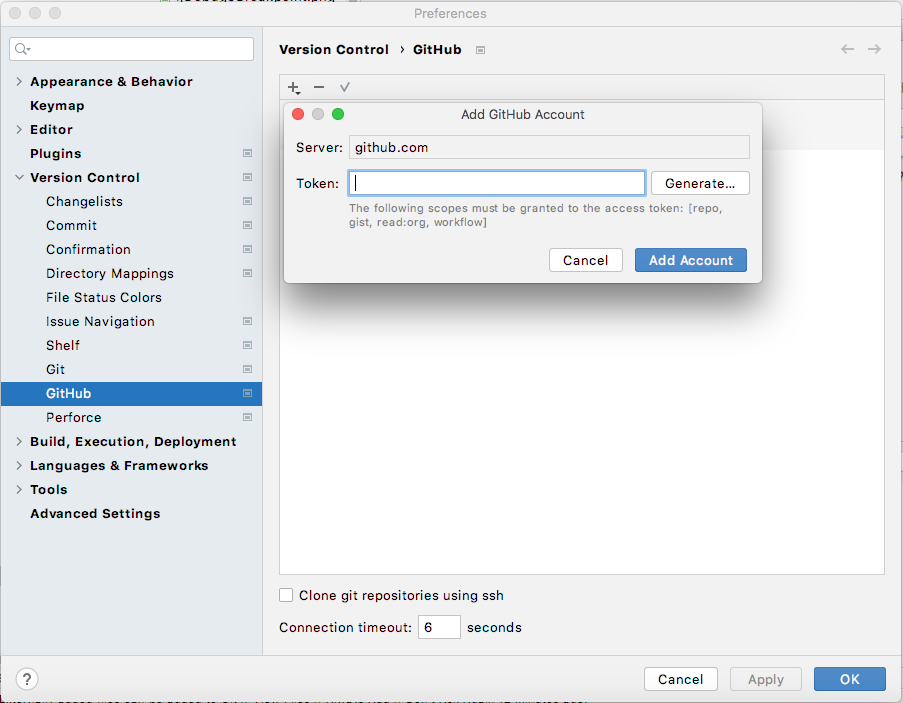
- From the Version Control -> GitHub tab choose Add... (the + sign), and select
Log In with Token...

After you have created an account on GitHub, proceed by clicking Generate... which will take you to your GitHub account web page.
Choose the correct scope (repo, gist, read.org and workflow) and click the green Generate Token button.
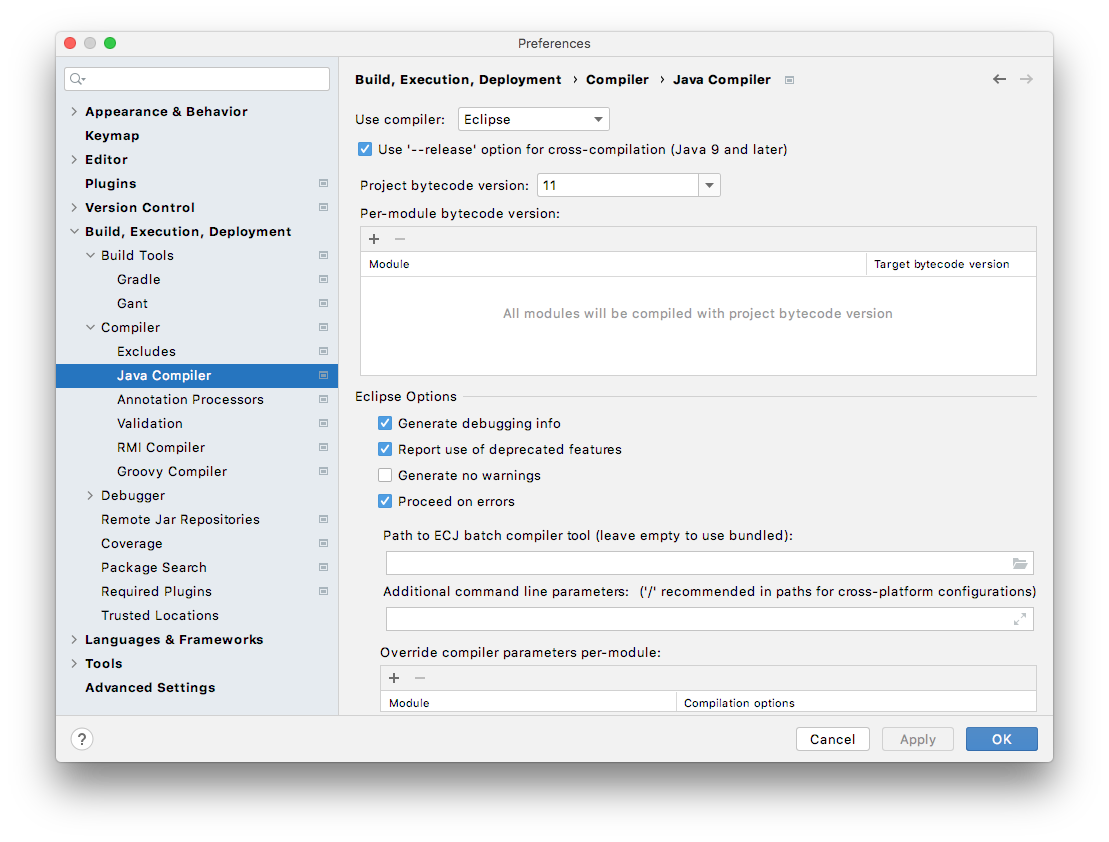
Copy and paste this string into the IntelliJ Add GitHub Account dialog as your Token and click Add Account. - From the Build, Execution, Deployment -> Compiler -> Java Compiler tab, select "11"
as the Project bytecode version.
On the same page, select "Eclipse" from the Use compiler drop-down:
- For now these are the essential settings. Some additional settings are described below, but for now you can click OK to close your Preferences and start exploring the IDE.
Getting the JMRI Source using Git
To get the source code from GitHub into IntelliJ, follow these steps:
- Open IntelliJ.
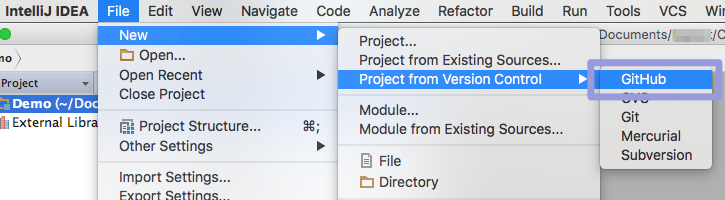
- From the main menu bar select File -> New -> Project from Version Control ->
GitHub
- If prompted, enter your GitHub username (Login) and Password in the authentication
fields and click "Login":

See IntelliJ Setup above for detailed options to connect to GitHub. - The Clone Repository pane should now appear. Select a Git Repository URL from your
account and point to your local repo folder as "Parent Directory":

Optionally click "Test" at top right to check your connection:

- Click "Clone" and follow progress in the indicator at the bottom of the Project
window:

- In the pane that opens after download is complete, check the location on disk,
confirm the project name (like the original i.e. "JMRI") and click "Next":
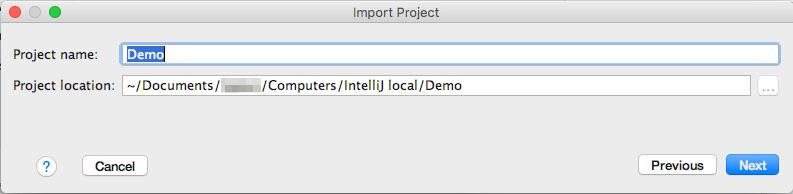
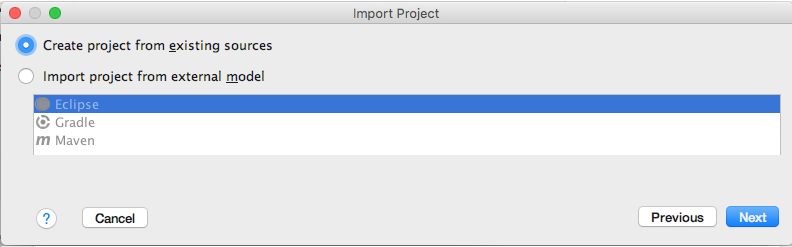
- Select "Create project from existing sources" and click "Next" again:
- Click "Mark all" and then "Finish":
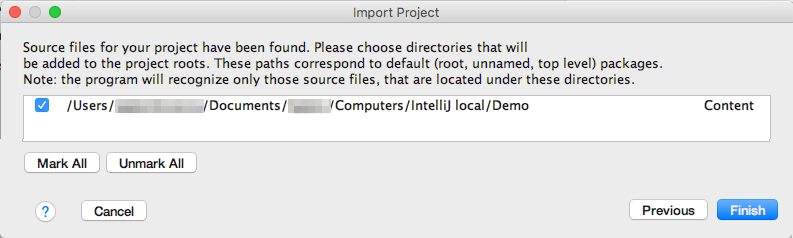
This will add JMRI to the IntelliJ Project window.
The Project window
After cloning is completed, the IntelliJ Project window should look like this (OS X
example):
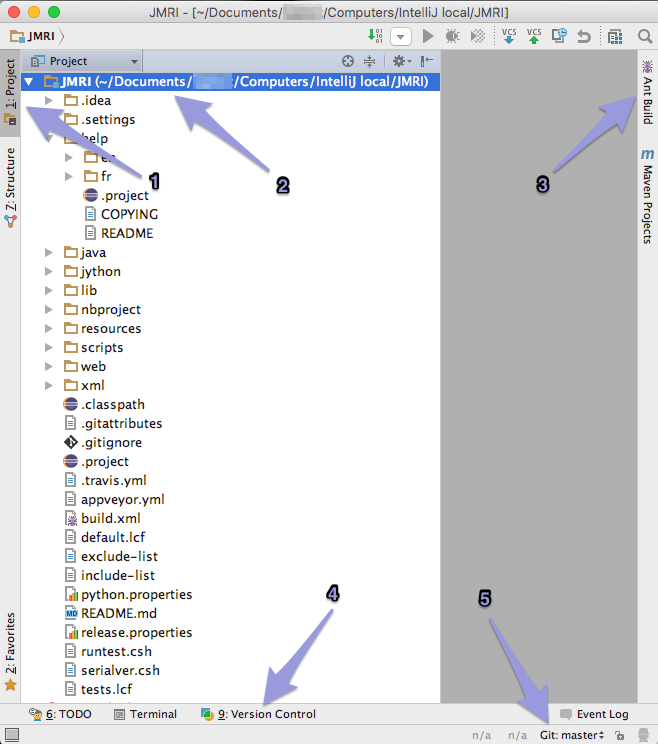
Along the edges of the window are several groups of tools, often used are:
- the Project tab on the left
- the JMRI directory in the left half
- the Ant Build tab on the right and
- the Version Control tab at the bottom.
- the Git: master at the bottom right-hand corner, showing the current Branch ("master") with a menu to change to another Branch.
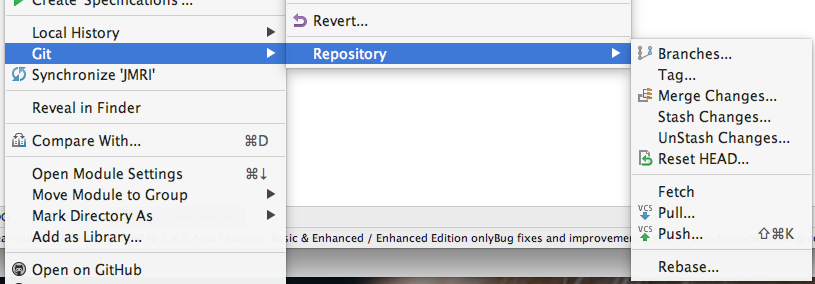
You can also access this panel from the main VCS -> Git -> Branches... menu or
right-clicking the JMRI Project folder and selecting Git -> Repository -> Branches...
To check out another Branch from the remote repo, select its name under "Remote Branches",
right-click and select "Checkout as new local branch":

When the information from the new Branch is downloaded, the Message Center will
confirm:

Project Settings
since 5.0 To ensure that the Java Development Kit version 11 you
intend to use for compiling JMRI is installed and will be used for this JMRI project, go to
File > Project Structure...
To manage the Java Development Kits available on your local computer, the Platform Settings > SDKs tab allows downloading, renaming and uninstalling JDKs as well as other packages such as Python:


Now switch to the Project Settings > Project tab, where you can select your JDK of choice:
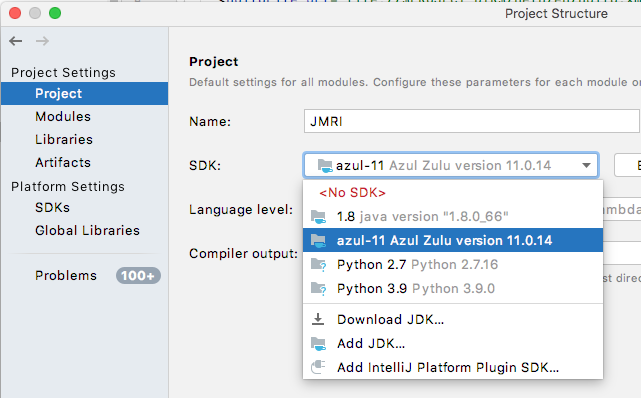

Click OK to close this dialog and apply the settings.
Making Changes
To work on the JMRI code, always start a new Branch so that your own "original" will stay
intact. In most cases, you will create this new branch off from master, your
personal copy of the main JMRI code.
To create a new Branch in IntelliJ, first check out master. To make it current, first do VCS
> Git > Pull... from JMRI-master, and VCS > Git > Push... to create a current
base.
Now then from the Git Branches pane, select "+ New Branch":

Supply a name i.e. my-dialog-2 and click OK.
Note: Starting the name of your Branch with a unique two letter combination will make it stand out
from the long list much better than a name like patch-1.
In special cases, you might want to branch from one of your own active branches, or from a
different branch or Tag in the JMRI GitHub repository.
To branch from a tag, select "Checkout Tag or Revision..." from the Git:branch dropdown at
bottom right:

In the dialog, start typing the name of the Tag you saw in GitHub web:

Click "OK" and provide a name for the new branch.
Building and running JMRI using Ant
We recommend that before you try to build and run one of the applications within IntelliJ,
you run the Ant Build -> <Default target> first. This will create the necessary
working directories, load some resource icons, and create needed Java files. To run the
ant build.xml do the following:
- Ant needs a JDK (Java Development Kit) in order to run the supplied "build.xml" file.
The IntelliJ IDEA download comes with a JDK, but you have to configure
antto use the correct JDK.
To verify the JDK is set to java 11, open the Ant Build tab [1] and select one of the items in the list. Next, click the Properties button [2] at the top right of the pane and choose the Execution tab.
As "Run under JDK:" select Project JDK (name as set in Project Structure) if not already set:
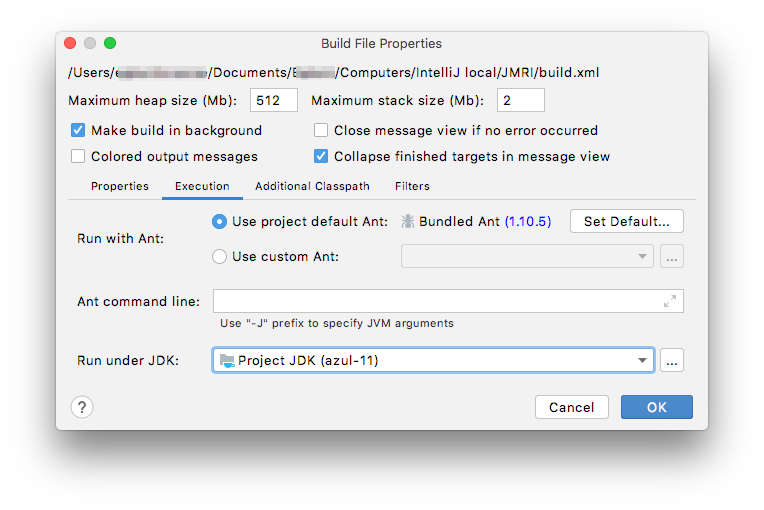
Click "OK" and save your JMRI Project (Cmd-S/Ctrl-S). - Select a file in one of the JMRI ant folders in the Ant Build list, right click, and select "Run Target", simply double-click or press the green triangle "Run" button at the top of the pane. This should start the ant build. Follow any messages in the Event Log that pops up from the bottom edge of the Project window.
- A new JMRI checkout should build cleanly. If not, do ant clean (meaning: double-click the clean item on the Ant Built list) before contacting the jmri-developers.groups.io for assistance.
If the ant build is successful, you can launch any of the JMRI applications from the Ant Build tab.
Building and running JMRI using IntelliJ
To run an application, either:
- From the main menubar open the "Build" menu and select a JMRI package like
panelproor - Open the Ant Build tab and from the "Ant Build" list, right-click the desired package
i.e.
decoderproand select "> Run Target".
Note: The first two "JMRI" sets will build the English and French JHelpDev TOC & Index files respectively. Hover your mouse over them and read the tooltip to learn which is which.
The Messages Center Console will list all steps of the build process, after which a Java icon will open with the application running including all your new edits.
Pushing changes to your GitHub branch
The standard practice for getting your changes included in the main JMRI code repository
is to Commit them to your local repository periodically and, when ready to publish
everything, "Push" an entire set of Commits to your own remote repository on GitHub, and
finally make a Pull Request for the maintainers to "Pull" your changes into the main JMRI
repository.
When working on more than one computer or different IDEs, Committing and Pushing makes your
new edit available on the other computers.
See the JMRI: Git FAQ "Setting up a Git environment for JMRI
Developers" for more information.
Pulling
It is also good practice to "Pull" all recent changes from the main JMRI repository before performing your Commits. After a "pull" your workspace and eventually your remote GitHub repository will be in sync with the main JMRI repository, and you will see recent work by others. To perform a "Pull":
- Select your project i.e. JMRI in the Project tab, right click and
select "Git" -> "Repository" -> "Pull..." from the context menu:

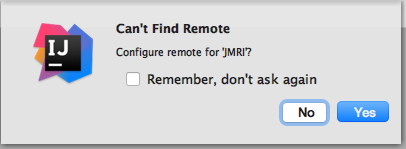
or from the VCS menu select "Git" -> "Pull..." - You may be asked first to confirm the origin of your remote repo, in our case
"JMRI/JMRI":
- The Pull Changes dialog opens:

[1] Select a remote repository (depending on the way you want to manage that, either your own repo or JMRI's as in the example).
[2] From the displayed list, select the appropriate Branch to merge (you might also Pull an extra Branch to switch to later).
If what you expect is not in the list, click the Refresh button [3]. - To conclude, click "Pull" and answer how you would like to combine the new data into
the existing local repo:

Pushing
Pushing to your GitHub Branch:
- First, commit your changes to the local repository on your computer.
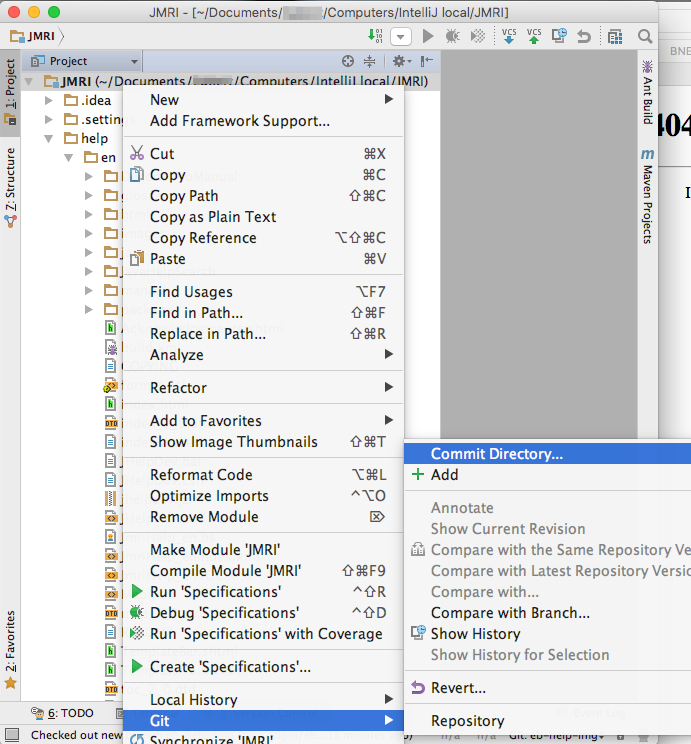
To commit a set of changes, choose "Save All" from the Edit menu, select your project i.e. JMRI in the Project tab, right click and select "Git" -> "Commit Directory..." from the context menu:
- In the Commit Changes pane, enter a Commit Message [1] describing your changes/fix
(line 1 will be used as the short title, add more detail from line 2).
Select the files [2] you wish to commit and deselect files you don't.
Choose your name from the list as Author [3]:
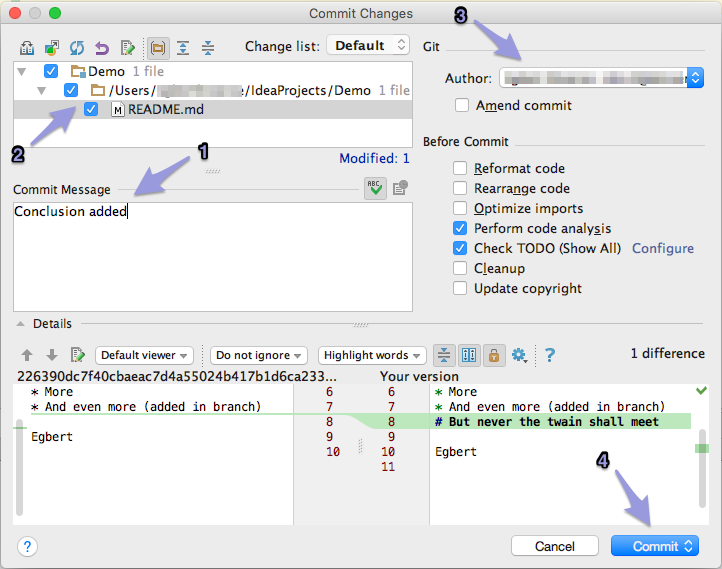
- Click the "Commit" button [4] to add your saved edits to the local GitHub Branch...
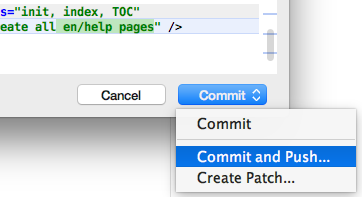
- Or hover over the Commit button and choose "Commit and Push..." to continue to Push
this set of changes from your local repository to your remote repository on GitHub right
after the Commit (so others can access it and study it for inclusion into JMRI).
- In the Push Commits pane, review your description.
For certain users there's an option to change the repo to which you want to push your local branch to:
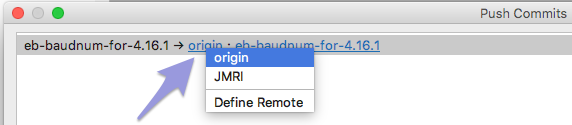
Click on the underlined part of the top line to see that pop-up. You should push to a (new) branch on "origin", your personal remote repository.
If the path and all else is correct, click "Push". - To push to your GitHub repository after a local Commit, just select "Push..." from the
"VCS" -> Git menu:

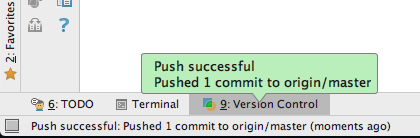
- If this went fine, a confirmation will appear at bottom left over the Version Control
tab:
Before you can Push your changes to GitHub for the first time, you'll have to create your own GitHub repository (which you have already done in step 1).
Debugging
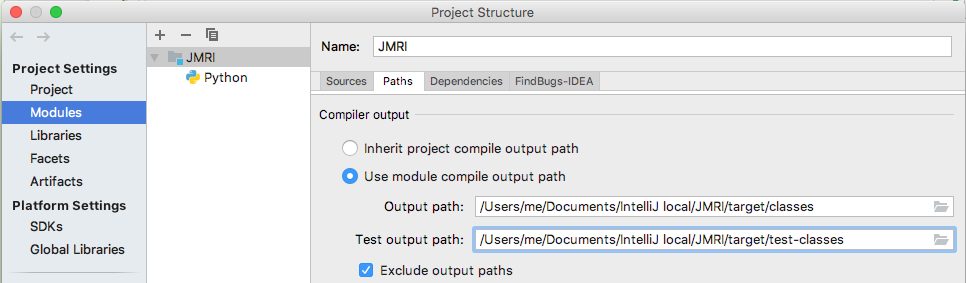
Check that the class and output paths have been set up correctly for the compiler. This
should happen automatically as part of the JMRI GitHub repository you copied at the start
(stored in the .idea/JMRI .iml file, see the IntelliJ
Compilation Settings help page).
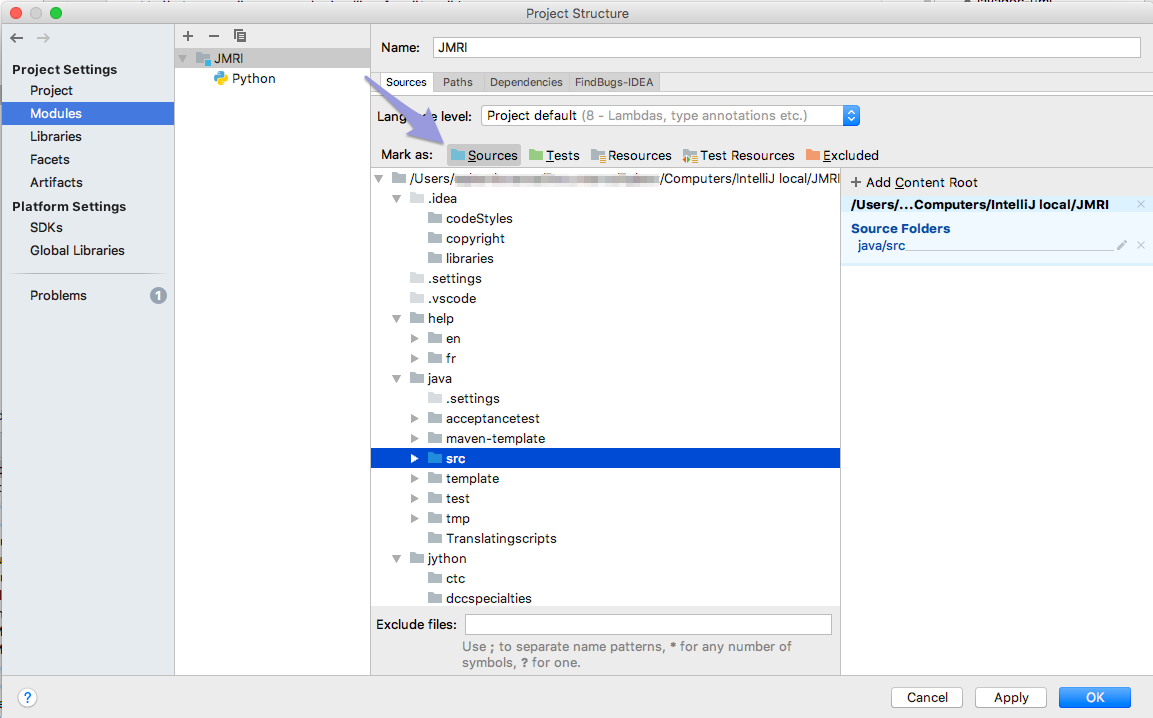
- In IntelliJ, select the File > Project Structure... menu item.
- Select Modules under Project Settings on the left.
- Select the Sources tab on the right.
- In the file tree, select the JMRI > java > src folder icon and
click on Mark as: Sources (the blue icon).
- Repeat for the test classes by selecting JMRI > java > test and
clicking on the green Mark as: Tests icon.
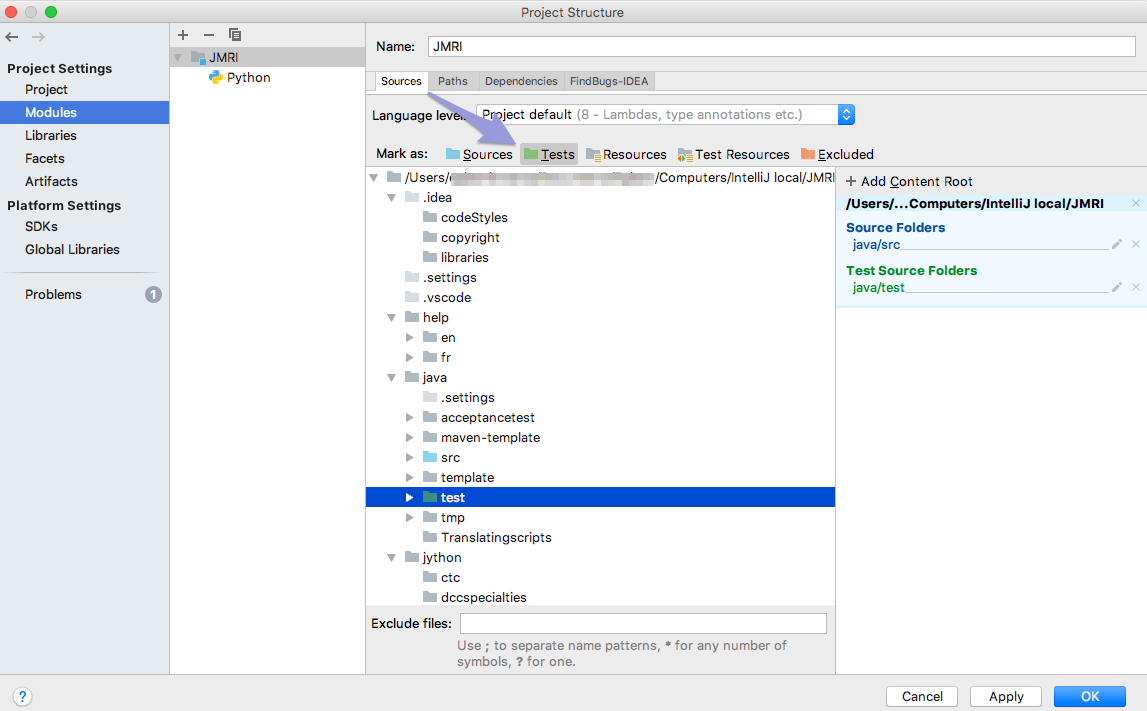
- In the column to the right both choices will be visible:
From now on you will also see these special icons in the Project file listing:
- From the Build menu select Build Project or Build Module 'JMRI' (and wait a couple of minutes, do some stretch exercises in the meantime).
We've documented the following steps to help you get started using the built-in Debug tool. We tested the JMRI project with the JAR, Application and JUnit (test) Templates.
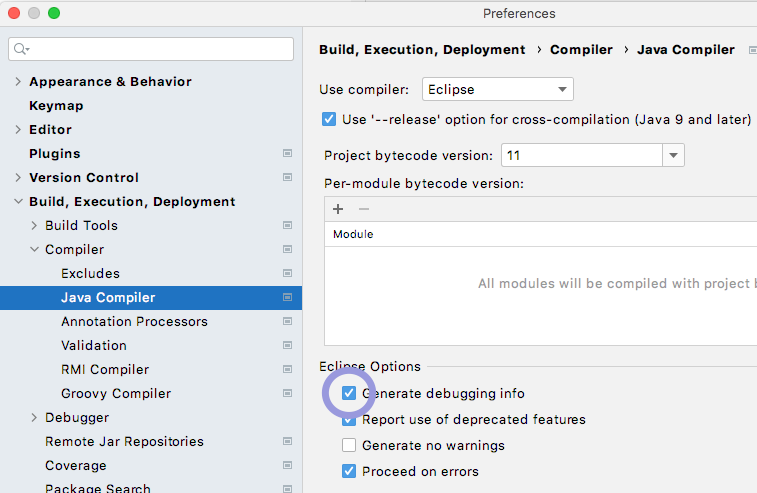
- In IntelliJ, start by opening Preferences > Build, Execution, Deployment and check
"Generate debugging info":
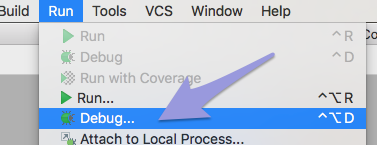
- Choose "Debug..." from the Run menu:
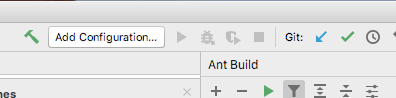
On the small "Debug" pane that appears, click "Edit Configurations..."
Alternatively, on the top right, click on "Add Configuration...":
- On the top left of the new pane that appears, click the + sign (Add New
Configuration).
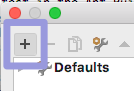
Or simply type Command + N.
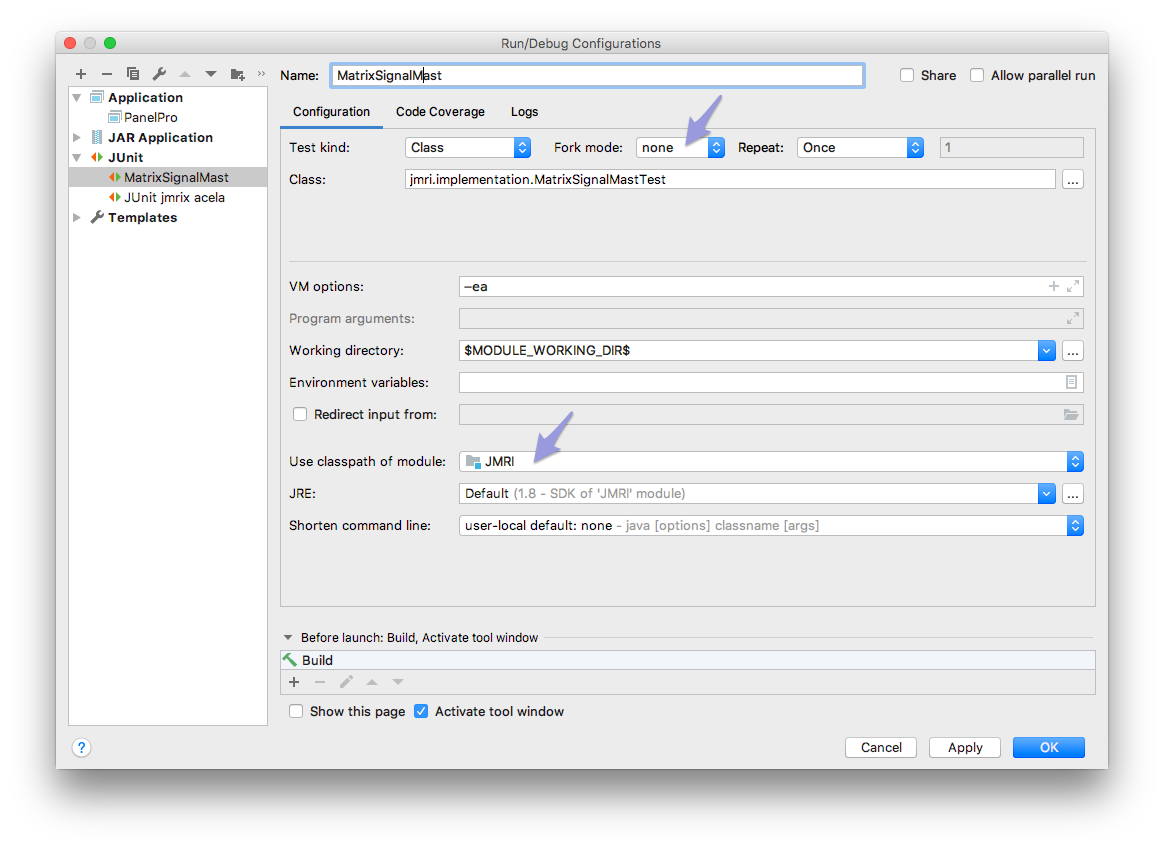
Select "JAR Application" in the list. - This opens the "Run/Debug Configurations" pane:

- As the Name of this Configuration, enter somethong like "JMRI DP debug".
- Make sure "Build" is visible in the "Before launch:" table, select "Run Ant target"
and choose "jar" from the build.xml list
In case of a JUnit template, opt for "build" instead. - Check "Activate tool window" near the bottom of the pane.
- Enter "jmri.jar" as the "Path to JAR" or use the "..." button to
navigate to the freshly built
jmri.jarin your Project. - Make sure the prefilled "Working directory:" is showing your local path to JMRI
(see example).
As the "JRE:" choice set "Default (1.8)". - Select "JMRI" using the "Search sources using module's classpath:" drop down.
- Click "OK" to complete the configuration setup.
- To run a debug session, start by opening a .java file and set a Breakpoint on a line in
your code by clicking in the left margin of the central edit pane:

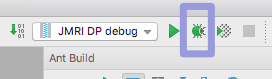
- We're now ready to start a Debug session by clicking the Bug button at the top right,
making sure our "JMRI DP debug" configuration is selected in the drop down to the left of
it:
- After a while, at the bottom of the main IntelliJ IDE interface, the Debug pane
appears, stopping just before your Breakpoint or an Exception:
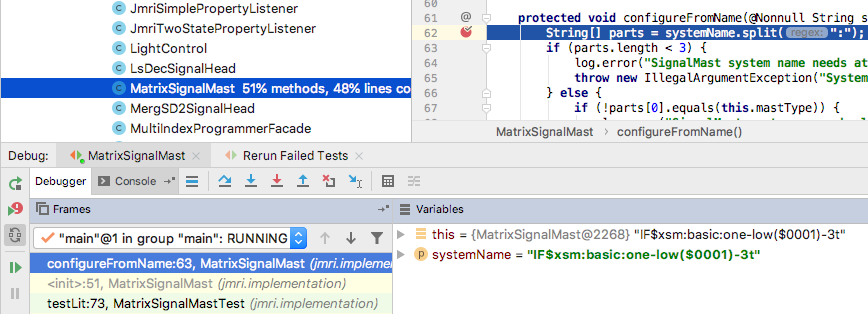
- Inspect the current values of the active variables, and click the Step Into button to
execute 1 line of code:

A further explanation of this pane and debugging in general can be found in the IntelliJ Online Help.
If your code was not compiled just before debugging, the source and class files might be out
of sync, so be sure to build first. As described above, you could add that to your Debug
Configuration too, but it might take unneeded extra time before each run.
Testing with IntelliJ
Besides Debug, there's also a "Run ... with Coverage" option available in the Run menu and toolbar.
When you create or edit a test (located in your Project at JMRI.java.test etc.) you can test it in one of the following ways:
- part of the
alltestAnt Build (double-click in the IntelliJ Ant Build right hand column to run) - run it on its own using the
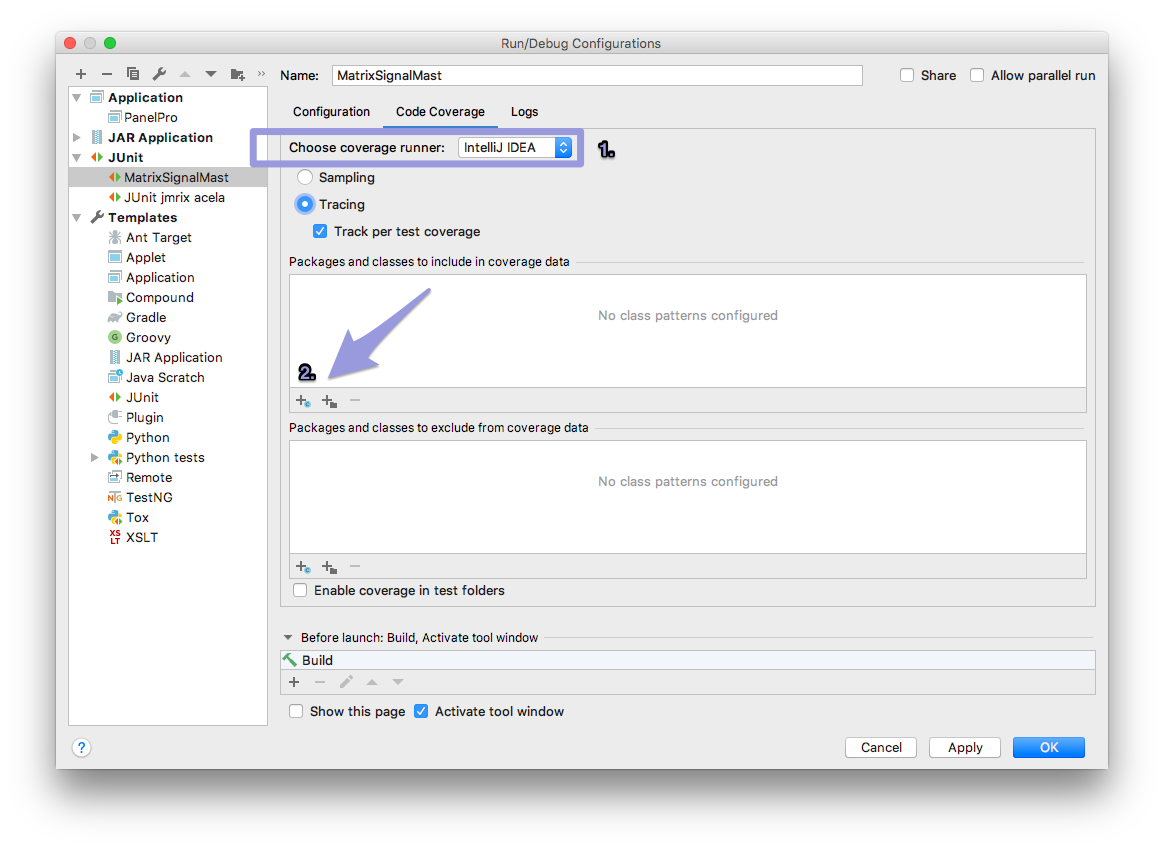
test-singleAnt Task - create a JUnit type Debug Configuration with optional Coverage reporting or
- Run a single test inside the File Edit pane of an open test file (the simplest to set up)
To use test-single, enter the path of your test in the Ant Build Properties
by either clicking the Properties button at the top or right-clicking on any line in the Ant
Build column, choosing "Properties". Open the "Properties" tab, click the + (Add) sign at
lower left and enter test.includes in the Name column and the path to your test
under Value, starting with either apps. or jmri. as shown:

The Code Coverage of your test can be checked by running Debug With Coverage. Unless you
install the Jacoco application, IntelliJ runs its own coverage scheme:
After tests have completed the Coverage pane opens. Double-click a class line to open the
code page. In the left margin coverage is marked:

To run a single @Test test inside the file window, make sure you have set up
the JMRI Project Structure > Modules > Sources (see above). When
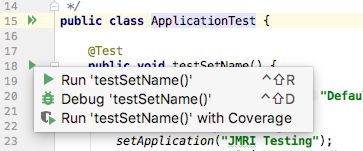
you open a Test file, in the left margin a green Run Test arrow will show next to every test.
Click it and select one of the 3 options from the combo:
Running SpotBugs
- Confirm that the class and output paths have been set up correctly for the compiler.
- An IntelliJ SpotBugs plug-in is not yet available, so you run it as an Ant Build task
and study the .html report.
To add the path to SpotBugs for Ant in yourlocal.propertiesfile to match the place where the SpotBugs application is located on your computer add these lines:
# configure SpotBugs

          spotbugs.home=/Users/you/Apps/spotbugs-4.2.3
See the JMRI SpotBugs help. - Next, from the Ant tab select the (3rd) JMRI > spotbugs
task, wait a couple of minutes (do some stretch exercises etc.), followed by SpotBugs
doings its duty. The analysis results show up as an html page called
spotbugs.htmlthat is placed in the root of the JMRI Module on the Project tab.
Right click to open it with your favorite browser.
For additional resources check the official SpotBugs Help
Making a Pull Request
When your contribution is ready, submit a "Pull Request" to the main JMRI code repository on the GitHub website so the maintainers of JMRI can study your proposed changes and merge them into the master JMRI repo.
To make a PR from within IntelliJ IDEA, select "Create Pull Request" from the "VCS" ->
"Git" menu (it's the one but last item, supported by the Git plugin).
Note: Be sure to select your own repository origin: if you see multiple options
to choose from in this submenu:

Fill in a title and comment for your PR:
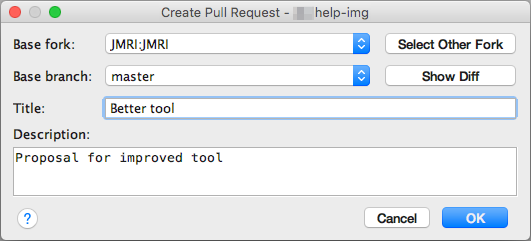
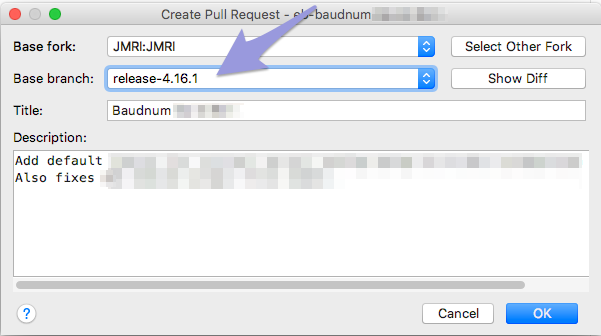
Unless your change is intended for a special branch like a previous release, you would set
the PR Target Branch to "master" as shown above. Otherwise, use the combo box to change the
branch where you want your new changes to be added:
To create a PR from GitHub web - outside IntelliJ - start by signing on to the GitHub website, selecting your repository & branch and clicking the Pull Request button. For more info, see the Git Developer Help page.
Tricks
Edit .properties files
Before you start, make sure you have set up IntelliJ to convert special
characters using lower case encoding strings, as only then will your changes
be accepted for merging into JMRI.
The instructions to set this via vmoptions are at the top of
this page.
In addition, check that in the IntelliJ Preferences > Editor > Code Style >
Properties you checked "Insert space around key-value delimiter", or your edits will mess up
the work already in place.

To easily edit Resource Bundle .properties files, select a 'Bundle' header icon in the Project file list and type Cmd +
arrow down key, or double click one of the language files. This will initially open a window with just that
single language file in the editor window.
To access a single view with the list of coded keywords on the left and text boxes for every
translation into a different language to the right, on IntelliJ 2022 install the Resource Bundle Editor
plugin (go to Preferences > Plugins, see screen shot).

When you open a specific language file and you have the Resource Bundle Editor installed, at the
bottom of the screen you can switch views by clicking the Resource Bundle or the
Text tab:

Reset HEAD
When in testing your app you conclude that you would like to remove your last couple of
Commits, IntelliJ gives you the option to graphically Reset your HEAD.
To do this, open the "Version Control" -> "Log" tab at the lower left of the Project
window to view a "Track Plan" of the history of your Branch, all the way back to the
different parts that made JMRI:
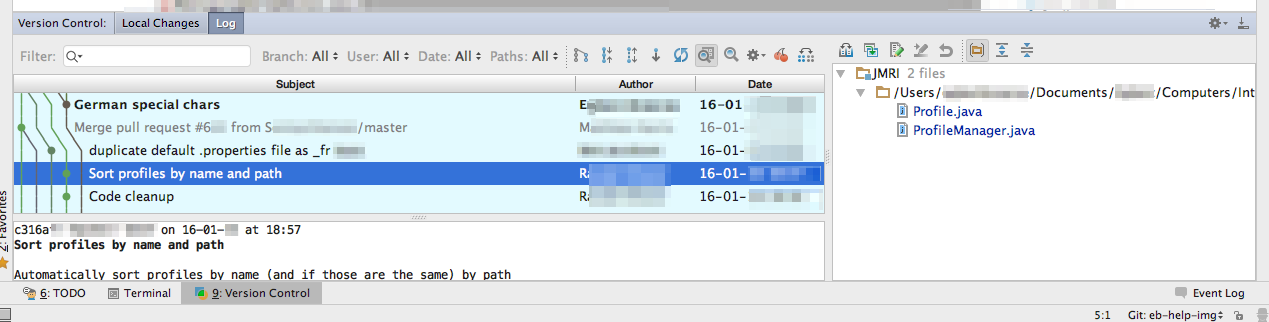
Click on any line to view the changes that were Committed at that point in time (listed to
the right).
To reset your repo (HEAD) back to a certain point, right-click on the corresponding line and
select "Reset Current Branch to Here..." (and confirm).

Confirm the way you want to save or discard your Commits after that point in the dialog:

Master password
To securely store your GitHub login, you might periodically be asked to unlock it:

Error: Can't start Git
On macOS, when you run into this error, usually when starting IntelliJ for the first time
after a system update:
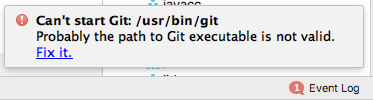
- Quit and restart IntelliJ
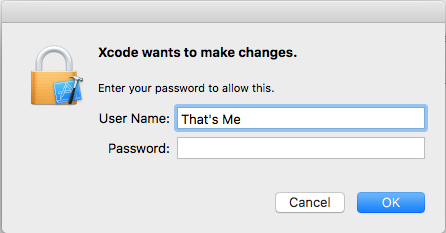
- If that does not fix it, quit IntelliJ and start the Apple Xcode application.
You will be asked to agree with its licence agreement, and that will reenable the Git installation to be used inside IntelliJ as well as Xcode.
Run/Debug Error
When you click Debug with a configuration selected (at top right) you
might see a path not found. name: com.intellij.rt.debugger.agent.CaptureAgent with
the Debug Variables pane showing: "Frame is not available". This is caused by an accidental
exception breakpoint on ClassNotFoundException. Open View Breakpoints...
from the Run menu and uncheck the breakpoint under "Java Exception
Breakpoints". We fixed it by unchecking the red lightning symbol in the margin of the
loadClass code listing. (source:
Stack Overflow)
Run/Debug Error
If you see a message similar to this:
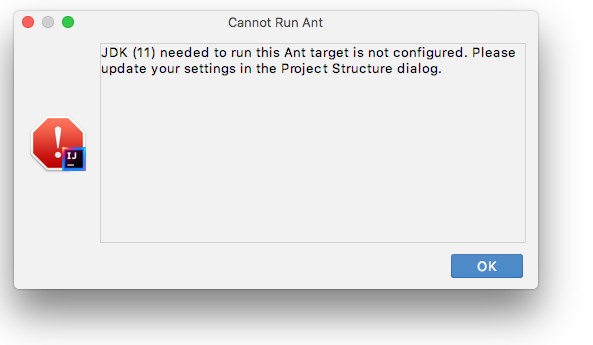
it means the SDK name as set in the Project Structure > Project Settings > SDK tab does not match any of
the JDKs installed. Fix it by choosing a different Java 11 JDK as described above.
More Help
See the IntelliJ IDEA web reference for more specific information on using this IDE.