Hardware Support: OpenLCB
The support on this page is rapidly evolving; the actual code might be ahead or behind the documentation on any given day.Connecting
JMRI provides support for general JMRI Sensors and Turnouts in terms of OpenLCB "events".OpenLCB connection options are on a separate page.
Settings
The default system letter for OpenLCB connections is "M". OpenLCB event and object names are introduced below, with additional details and formats on a separate page.
JMRI associates OpenLCB Events with individual JMRI objects (Sensors, Turnouts, etc.) via
the JMRI System Names. A System Name like "MS1.2.3.4.5.6.7.8;1.2.3.4.5.6.7.9"
defines a Sensor that follows the "1.2.3.4.5.6.7.8" and "1.2.3.4.5.6.7.9" OpenLCB Events to
change state.
Another format for Event ID's is a continuous hexadecimal string, such as
"x0102030405060709".
You can also assign your own names to EventIDs and use those to create Turnouts, Sensors, Lights, Signal Masts and StringIOs. See the page on OpenLCB names for more information on this.
These System Names can get very long, in which case the "User Names" become much more useful.
Sensors
OpenLCB messages coming into JMRI applications can be accessed via JMRI Sensor objects.
The Sensor's System Name determines which OpenLCB Events it
corresponds to.
A Sensor is defined by two Events: The one that sets it ACTIVE, and the one that sets it
INACTIVE.
The Event numbers are essentially arbitrary, and are defined by the OpenLCB Nodes that produce
them. Because Events are not intrinsically associated with specific hardware objects, and
because people can use Event ID's in many ways, the specific Event ID's for a Sensor must be
supplied.
You create Sensors using the Add... button on the Sensor Table. If you supply two
event ID's, the first will set the Sensor ACTIVE and the second will set it INACTIVE. If you
provide just one, it will set the Sensor ACTIVE, and it will automatically reset itself to
INACTIVE shortly after. This can be used for events that indicate momentary things on the
layout like "it's noon".
As a special case, layout sensors connected via a bridge to an OpenLCB network can be addressed as e.g. MSS123. Note the S in the 3rd position for "Sensor addressing". JMRI will then automatically generate the correct well-known events to represent active/on and inactive/off for the sensor.
When "Show System-specific columns" is checked in the table, there are two additional columns shown that are specific to OpenLCB Sensors:
- Authoritative
- Normally checked, this means that the JMRI Sensor
will report its state when a query comes from another
OpenLCB node. That will then allow that other node
to adjust its own state to be consistent.
When not checked, JMRI will report the state of the Sensor as "unknown". This will allow some other user of these events to be the authoritative source.
- Always listen
- When checked, all state reports will update local Sensor state.
When unchecked, state reports will update local Sensor state
only if the local state is UNKNOWN. State change messages (Event
Reports) always change local state.
Might be helpful to uncheck this if the Sensor state flip-flops
multiple times after a query, which means that the
Sensor does not have a consistent distributed state.
Typically when Authoritative is checked, then this is better unchecked.
If there is only one authoritative source for state, then having this checked is good, because it will make JMRI converge to the correct state irrespective of how long JMRI has been running. This is particularly important if the authoritative producer / consumer of the event does not save its state between reboots.
There's also the case where you have two momentary pushbuttons for setting the Sensor (or more usually, for setting a Turnout), and those input lines believe that they are authoritative. This can confuse JMRI (because typically both are invalid). In this case, "Always Listen" needs to be unchecked.
Turnouts
The scheme for Turnouts is similar to Sensors above, except JMRI is producing the OpenLCB
events instead of receiving them, and the type letter is "T" instead of "S", e.g.
"MT1.2.3.4.5.6.7.8;1.2.3.4.5.6.7.9".
A Turnout is defined by two Events: The one that it produces for THROWN
and the one that it produces for CLOSED respectively.
Turnouts have Authoritative and Always Listen checkboxes that work the same as the checkboxes on Sensors.
As a special case, DCC turnouts connected via a bridge to an OpenLCB network can be addressed as e.g. MTT123. Note the 2nd T for "Turnout addressing". JMRI will then automatically generate the correct well-known events to throw/close the corresponding DCC turnout.
Lights
The scheme for Lights is similar to Sensors above, except JMRI is producing the OpenLCB
events instead of receiving them, and the type letter is "L" instead of "S", e.g.
"ML1.2.3.4.5.6.7.8;1.2.3.4.5.6.7.9".
A Light is defined by these two Events: The one that it produces for ON
and the one that it produces for OFF respectively.
Lights have Authoritative and Always Listen checkboxes that work the same as the checkboxes on Sensors.
Signals
OpenLCB connections can use many of the usual forms of SignalHeads and SignalMasts that are based on Turnouts. In addition, there's an OpenLCB-specific form of SignalMast that uses Events to change from one aspect to another.
StringIOs
since 5.11.2 A StringIO is a general-purpose tool for sending and receiving strings of characters to the layout hardware. Different systems use them in different ways.OpenLCB connections can use StringIOs to create shared variables across multiple JMRI instances, and perhaps someday other OpenLCB hardware that supports string input and output. To do this, you create the same StringIO within each JMRI instance, using the same Event ID. Once you've done that, updating the string value in one instance will update the value in all of the others in the different JMRI instances connected to the same OpenLCB network. You can then configure LogixNG or scripts to communicate using that.
JMRI OpenLCB Tools
The LccPro application is optimized for configuring and controlling an LCC network. You can also use PanelPro to do this through its LCC or OpenLCB menu.
The OpenLCB or LCC menu contains:
- Traffic Monitor

- You can directly operate the OpenLCB network via the Send Frame
tool

- Browse and set Configuration with the Configure
Nodes tool

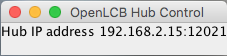
- Start Hub
- The Event Table lets you see what nodes produce and consume particular events. It also allows you to give names to events that will appear in the monitor.
- The
Firmware Update
tool can load new firmware into compatible OpenLCB Nodes

- The Memory Tool lets you read from and directly write to a nodes memory. This can be useful for diagnostic purposes.
- The ID Tool helps you find a specific physical node on the layout by flashing its activity lights.
- The STL Editor is a user friendly front end for the Tower LCC+Q logic. since 5.7.5
Documentation
JMRI Help
- How to Connect JMRI to an OpenLCB installation
- The Help page on OpenLCB Technical Details
- The main Help page for JMRI CAN support, including links to various general tools