JMRI: LogixNG Table Editor
The Edit LogixNG table contains a list of the defined ConditionalNGs.
Table Content
The LogixNG Editor table lists all of the currently defined ConditionalNGs.
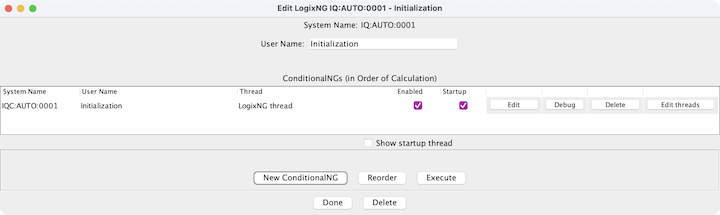
- System Name
- The system name for the ConditionalNG. ConditionalNG system names have an IQC prefix normally followed by numbers. For details about the ConditionalNG system name, see Add a ConditionalNG. The system name cannot be changed.
- User Name
- The user name for the ConditionalNG. This is a free form field that contains a meaningful name.
- Thread
- The thread field shows the currently assigned thread name. It is changed by using the Edit threads button. This is particular useful when using the LogixNG Debugger.
- Enabledsince 5.7.6
- When a ConditionalNG is created, it will be Enabled. Uncheck the checkbox to disable the ConditionalNG. One of the options for error handling is to disable the ConditionalNG. After fixing the problem, use the checkbox to enable the ConditionalNG. Sometimes it is helpful to disable a ConditionalNG in order to test alternative approaches.
- Startupsince 5.5.5
- Enabled LogixNGs start automatically after the layout configuration has been loaded. The resulting actions will depend on the current state of the expressions. Sometimes a LogixNG ConditionalNG should wait until a specific event occurs. Unchecking the Startup checkbox will bypass the automatic process.
- Edit
- The Edit button opens the ConditionalNG Editor window.
- Debug
- The LogixNG Debugger allows you to walk thru a ConditionalNG step by step to see what it is actually doing. See LogixNG Debugger
- Delete
-
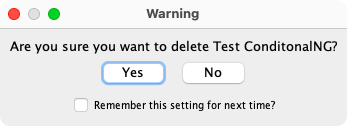
The Delete button deletes the current ConditionalNG and the
ConditionalNG content. A confirmation dialog will be displayed.
- Edit threads
LogixNG runs the ConditionalNGs in the LogixNG Java thread. This reduces conflicts with other parts of JMRI.
The thread for a ConditionalNG can be changed to use a different thread. This makes it possible to isolate long running or complex ConditionalNGs. Another use is to use the Debug thread when using the Debug option. The Debug option stops the thread for each step. By using the Debug thread, the other LogixNG ConditionalNGs are not affected.
When the Edit threads button is selected, the Thread editor opens.
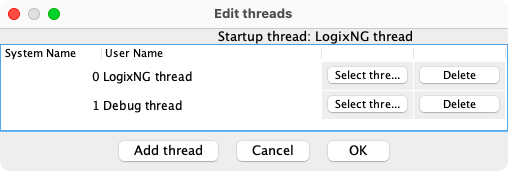
The default LogixNG and Debug threads are displayed. The Add thread button can be used to create new threads. The threads in the dialog can be used by any ConditionalNG. Unused threads can be deleted using the delete button.
The Select thread button is used to assign a different thread to the current ConditionalNG. This is NOT a real time change. The thread is assigned during the layout data file load process. This means that after a different thread is selected, the layout data has to be stored, PanelPro is stopped and restarted and the layout data file is loaded.
- Show startup thread checkbox
- When unchecked, the Thread column displays the thread assignments for the current PanelPro session. When checked, the column displays the planned thread assignments for the next PanelPro session. If a thread assignment was changed, a layout data file Store needs to occur before stopping PanelPro.
Add a ConditionalNG
To create a new ConditionalNG, click on the Add... button. The Add ConditionalNG window will be displayed.
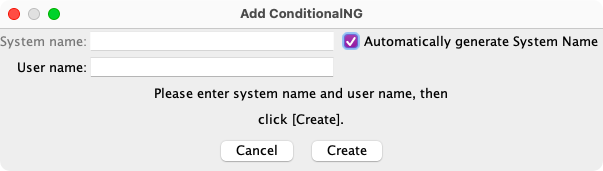
The system name is required. The system name for a ConditionalNG always begins with the letters IQC. If the entered name does not start with IQC, it will be automatically added. The typical suffix is a number. If Automatically generate System Name is checked, the system name format will be IQC:AUTO:nnnn. Any other format requires adding a $ (dollar) character between IQC and the suffix.
The ConditionalNG system name is not derived from the the parent LogixNG system name. This is different than the Logix procedure.
The user name is optional but recommended. A user name may be any useful text, provided the new user name was not previously assigned to another ConditionalNG in this LogixNG. The user name can be the same as another ConditionalNG that is in a different LogixNG.
Once a ConditionalNG is created, its system name cannot be changed. Its user name may be changed in the Edit LogixNG window. The user name is usually used to provide a more descriptive name, for example, "Signal 5 Control".
After clicking Create, the ConditionalNG will be created and the Edit ConditionalNG window will appear.
Reorder
During initial startup of a LogixNG, the ConditionalNGs will be executed in sequence. The sequence for subsequent executions is dependent on JMRI change events.
When the Reorder button is pressed, the Edit labels for each row will change to First. After the first ConditionalNG is selected, the label will change to 1 and the remaining labels will change to Next. As each Next is selected, the label will change to the new row number. When all of the Next labels have been selected, the labels will change back to Edit.
Execute
When the Execute button is pressed, the ConditionalNG Expressions will be evaluated using the current JMRI states and the appropriate Actions will be performed.
Close
When the Close button is pressed, the Edit LogixNG window will close.
Delete
When the Delete button is pressed, the LogixNG, its ConditionalNGs and related content will be deleted. The LogixNG delete confirmation dialog will be displayed.