JMRI®: Setup
General Installation
Installation
Full instructions for installing JMRI on different platforms can be found here:
JMRI® requires that Java be installed:
- Version 2.12 can run on any computer system that will run Java 1.5 through Java 8 (also known as Java 1.8).
- Version 2.14.1 requires Java 1.5 (or Java 1.6 to support for drag & drop) through Java 8.
- Version 3.10.1 requires Java 1.7 through Java 8.
- Version 4.2 thru 4.25.5 requires Java 8 (except release 311) or Java 11 (recommended).
- Version 4.25.6 thru 4.26 requires Java 8 or Java 11 (recommended).
- Version 4.99.x thru 5.8 requires Java 11.
- Versions 5.9.1 onwards, requires Java 11 or Java 17 (recommended). See our Java instructions page on getting Java.
As of production release JMRI 5.0, JMRI is fully supported when running on Java release 11 as noted above. Some problems have been encountered while using a Java version beyond Java 11 and support is offered only on a "best effort" basis. Some issues may only be addressable by using a supported version.
As of test release JMRI 5.9.1, JMRI is fully supported when running on Java release 17 as noted above. Some problems have been encountered while using a Java version beyond Java 17 and support is offered only on a "best effort" basis. Some issues may only be addressable by using a supported version.
Starting the program
Once you have downloaded the JMRI® software and installed it, simply open the program in the usual manner for your operating system. Windows will show an icon on desktop (with default install options selected).

Double click the icon for the program to open.
If the DecoderPro® icon was selected, the DecoderPro® Roster will be displayed.
If PanelPro was selected, a startup dialog will be displayed.
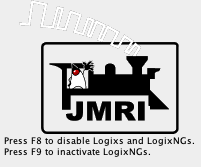
The startup dialog has two options which can be used to defer processing of the Logix and LogixNG tools. These tools are used automate JMRI processes but they can also interfere with normal processing which can require debugging.
- The F8 key is used to disable the Logix and LogixNG items when the layout data xml file is loaded. This only applies to file loading that occurs due to a startup action. See Logix or LogixNG for details.
- The F9 key is used to prevent processing of LogixNG items. See LogixNG for details.
If this is the first time you run the program after you installed the software, the
Preferences screen will come up automatically to allow you to set up the system for your
particular configuration. Also if you change your system configuration, OR if you have your
laptop away from the railroad, but you want to play with JMRI there is a simulator mode you
may want to try.
[To be continued]
Setting your Preferences
Fixing Problems
- Debugging an installation
- Debugging and System Logging after installation
- Error Codes
- InstallTest (Windows only)
- Frequently Asked Questions