Hardware Support: Digitrax SE74

Using the SE74 with JMRI
The Digitrax SE74 provides a variety of features which may be used with JMRI. JMRI-supported features include signal control, switch control, and inputs.
Configuring the SE74 with JMRI
Since JMRI 5.3.4 DecoderPro can configure the Op Switches of the SE74 so long as it has a LocoNet connection to the SE74.To do this, you open DecoderPro (as an individual application or via selecting "Roster" in PanelPro) and create a new roster entry. Select the Digitrax SE74 decoder type for it and enter the SE74's address. You can then use the usual DecoderPro panes to read and write the configuration variables (Op Switches) in the SE74.
Configuring the SE74's routes be done using the methods described in the Digitrax documentation for the SE74.
Signaling using the SE74 with JMRI
The SE74 has two mutually-exclusive operating modes which determine how JMRI can control the signal heads. As such, these instructions present two different ways of configuring JMRI to control the SE74 - one for each SE74 operating mode. One method is "SE8C-compatible" mode. The other is "Aspect" mode.
The "Turnout" mode of controlling signals makes use of Turnout control messages to convey the "aspect" information to the hardware. It operates in the same way as the SE8C device does, and JMRI support for this mode of operation is the same as when using the SE8C device.
Alternately, control of SE74 signal heads is via an "Aspect". This mechanism uses different LocoNet messaging than SE8C mode, and requires different support in JMRI. SE74 "aspect" mode signaling has a few benefits over SE8C mode. SE74 users are encouraged to make use of this mode of SE74 operation.
Signaling when the SE74 is in "aspect" mode
The SE74 offers an alternate mode for controlling signal head appearance. In the SE74 documentation, Digitrax refers to this mode as "aspect" mode. Control of each individual signal head is via DCC "Extended Accessory Decoder" packets. LocoNet-connected SE74 devices may get their control information directly from the LocoNet messaging, rather than from the DCC track signal.
The DCC "Extended Accessory Decoder" messaging uses an "address space" which is independent of the addressing used for turnout control messaging. As such, a turnout with address 260 does not conflict with a SE74 signal head at "aspect"-mode signaling address 260! This also makes it easier to configure SE74 addressing in a way that does not conflict with other "turnout"-type objects associated with the layout.
When an SE74 is operating in "Aspect" mode and it sees such a message which is addressed to one of its signal heads, it extracts the aspect number from the message and updates the addressed head to reflect the aspect associated with the aspect number. Note specifically that the "Aspect" mechanism Digitrax uses is controlled at the level of the "Signal Head". This design choice provides compatibility with some 3rd-party LocoNet signaling hardware. And it means that JMRI does not require SE74-specific support in its signaling implementation. It also means that changing the aspect of a mast which has more than one head can require more than one message to be issued when the aspect changes. (When a JMRI Signal Mast's aspect changes, the JMRI implementation will send a message to each Signal Head associated with the Signal Mast, regardless of whether the head aspect has changed).
This SE74 behavior is notably different from the behavior seen in some other signaling implementations. Some devices use a single single DCC extended accessory decoder control message to influence _all_ of the heads on the mast. That difference in hardware implementation and messaging usage means that configuring a JMRI Signal Mast using other hardware types will be different from configuring a JMRI Signal Mast for the SE74-controlled signal heads when the SE74 is configured for "Aspect"-mode signaling.
Signaling when the SE74 is in "SE8C-compatible" signaling mode
One of the SE74 signal control modes relies upon DCC Accessory Decoder (in other words. "Turnout") control mechanisms. The SE74 Instruction Sheet refers to this mode of operation in several different ways: "4 Turnout" mode, "SE8C Compatible" mode and "SW control" mode. For the purposes of this documentation, the use "SE8C" mode shall be used.
As is implied by one of those names used in the Instruction Sheet, this SE74 mode uses the same LocoNet messaging and mechanisms to control the signal head behavior.
When operating in "SE8C" signaling mode, the SE74 may be used JMRI when using any DCC system which supports control of turnouts from JMRI.
Which SE74 mode should I choose?
There are a few considerations when choosing an SE74 signal head control mode:- Does your DCC system support DCC Extended Accessory Decoder
control messages or LocoNet?
If your DCC system supports neither, then SE8C mode is the only option.
If your DCC system supports either or both, then either mode may be used. - Do you already use SE8C-based signaling on your layout?
If so, then it may make sense to continue to use SE8C mode, for the sake of consistency. - Will your signals display any "flashing" aspects?
When using SE8C mode, any head displaying a flashing aspect requires a control message every time the head aspect changes. This message traffic can become problematic in some situations.
However, when using SE74 "Aspect" mode signaling, only one message is needed to enable the flashing aspect for a signal head, and the head will remain flashing until some other aspect control message is directed to that head. This can significantly reduce the signaling-related message traffic and can reduce or avoid the problematic issues which may be seen with flashing aspects and "SE8C" mode signaling. - If you want/need control over the AUX outputs on the S1 thru S4 cables, you (apparently) must use Aspect mode, as there appears to be no way to control the AUX outputs in "SE8C Compatible" mode. JMRI does not have any reasonable way to control the AUX output (i.e. what SE74 documentation calls the "Lunar" aspect) when SE74 OpSw41 is "C"losed.
- Because SE8C-mode signaling is controlled via "Turnout" operations, it is necessary to program the SE8C so that its signal control addresses do not "conflict" with any other turnout-controlled device on the layout. SE74 "Aspect" mode signaling can only conflict with those devices which use the "Extended Accessory Decoder" messaging (or its LocoNet equivalent), thus making it far easier to void addressing conflicts.
- Control of a "Lunar" aspect is not available when the SE74 operates in "SE8C" signaling mode. When the SE74 operates in "Aspect" signaling mode, a "Lunar" aspect may be displayed. Depending on the SE74 OpSw settings, the "Lunar" aspect may be displayed in addition to another aspect (Red/Yellow/Green/Flashing Red/Flashing Yellow/Flashing Green), or instead of that other aspect.
In the author's opinion, "Aspect" mode is preferred over "SE8C Compatible mode" for any system which can support "Aspect" mode.
Configuring SE74 "Aspect"-mode "Signal Head" objects in JMRI
This section describes how to associate a JMRI "Signal Head" object with the SE74 hardware and one of its controlled Signal Heads, when the SE74 is configured to use "Aspect"-mode signaling. This section does not apply when the SE74 is configured for "SE8C"-mode signaling; see this section for information on configuring JMRI Signal Head objects when using the SE74 in "SE8C"-mode.
It is assumed that you have JMRI configured to communicate with your DCC system, and that you have configured the SE74 for "Aspect" mode signaling and that the SE74 has a base address which does not conflict with any other aspect-mode signaling hardware. With those assumptions met, you may start configuring the JMRI "Signal Head" objects.
Within the JMRI Panel Pro application, open the Signal Heads" table (i.e. Tools ⇒ Tables ⇒ Signal Heads ). This table shows all the Signal Heads which have been defined.
To configure a new JMRI "Signal Head" object, it is necessary to "add"
a signal head. This is done by activating the "Add" button at the bottom
of the Signal Heads table. This will open an "Add Signal Head" window,
where the specific information required to define a signal head may be
entered. An example image is shown below.

- For use with SE74-controlled signal heads when the SE74 is configured for "Aspect"-mode signaling, the "DCC Signal Decoder" control method is appropriate. Select this control mode at the top of the window. When the signal head control mode is changed to "DCC Signal Decoder", the window will be re-drawn to show only the signal head configuration information which applies to this method of controlling the signal head.
- Select the appropriate "connection" type. Choose the JMRI "connection" name which reflects the connection from which the SE74 will get its control information. When using the SE74 with a Digitrax-based layout, the connection name will typically be "LocoNet".
- Enter the "Hardware Address". This is the address by which JMRI
communicates with the individual signal head. When the SE74 is used in
"Aspect" signaling mode with a LocoNet-based command station, the hardware
address can be related to the SE74 "base address" using the following
equation:
Aspect Mode Hardware Address = (SE74 base address) + ((SE74 head number) - 1) - The "Address offset" checkbox can be used to configure JMRI to adjust the hardware address value for use on DCC systems which use a different interpretation of the NMRA "DCC Extended Accessory Decoder" message specification. This offset is unneeded when used with Digitrax DCC systems, and should remain unchecked in those cases.
- The "Send Count" setting allows for the DCC system to repeatedly send an aspect change message multiple times. For LocoNet-connected SE74s, this parameter may be reduced to its lowest value.
- In the "Add Signal Head" window, enter a "User name" for the signal head.
It is common to specify a user name which gives the "location" of the
signal mast upon which the head will be used, as well as which head it
represents on the mast. It may also be useful to give specific information about
how the Signal Head will be used on the layout. Some User Name examples include:
- "West Duluth Westward Main A Head", or, more compactly "W.D. WWD M A"
- "Rangeley River Jct. Main 2 Eastward B Head", or, more-compactly, "RRJct M2 EWD B"
- "Alleghany Eastward Siding Westward A Head", or, more-compactly, "Al. EWD Siding WWD A"
- "132A", for the "A" (top) head on mast 132
- The JMRI "default" values for the aspect numbers are consistent with SE74 aspect numbering and should not be modified.
- Once you have updated all settings to reflect your needs for that head, activate the "Create" button.
- An additional head may be created by updating only those fields in the "Add New Signal Head" window which differ from the displayed data. Typically this means the "User Name" and "Hardware Address" fields will need to be changed. Activate the "Create" button to add a new signal head using the modified information.
Note that there is no JMRI requirement to select a user name that mentions the Digitrax "head letter", except that it will be easiest to wire and debug if you leave yourself sufficient hints. Those hints may be left in the user name, in the "comments", or may be left out of the JMRI information altogether at the user's choice. If you are able to compute the connector number and Digitrax "head" letter from the "head" address and the SE74 base address, you may not need such hints.
Note also that the SE74's "aspect-mode" signaling provides a SE74 setting where the "Lunar" aspect may be made "persistant". JMRI is not able to understand the concept of a "persistant" aspect capability, so that feature needs to be disabled in the SE74's OpSw settings.
Configuring SE74 "SE8C"-mode "Signal Head" objects in JMRI
It is assumed that you have JMRI configured to communicate with your DCC system, and that you have configured the SE74 for "SE8C Compatible" mode and that the SE74 has a base address which does not conflict with any of your other hardware. With those assumptions met, you may start configuring the JMRI "Signal Head"s.
Within the JMRI Panel Pro application, open the Signal Heads" table (i.e. Tools ⇒ Tables ⇒ Signal Heads ). This table shows all the "JMRI Signal Heads" which are defined within JMRI. A JMRI "Signal Head" provides a mechanism for JMRI to interact directly with a single signal head.
Set up each individual signal head by "add"ing a signal head. This is done using the "Add" button at the bottom of the Signal Heads table. This will open an "Add Signal Head" window, where the specific information required to define a signal head may be entered.

- Select "SE8C 4 Aspect" at the top of the "Add New Signal Head" window.
- Enter a "User name" for the signal head.
It is common to specify a user name which gives the "location" of the
signal mast upon which the head will be used, as well as which head it
represents on the mast. It may also be useful to give specific information about
how the Signal Head will be used on the layout. Some User Name examples include:
- "West Duluth Westward Main A Head", or, more compactly "W.D. WWD M A"
- "Rangeley River Jct. Main 2 Eastward B Head", or, more-compactly, "RRJct M2 EWD B"
- "Alleghany Eastward Siding Westward A Head", or, more-compactly, "Al. EWD Siding WWD A"
- "132A", for the "A" (top) head on mast 132
- For each of the two turnouts which control the signal head hardware:
- Specify the connection type which will convey the "Turnout" control messages to the SE74. For LocoNet-based systems, this will usually be the "LocoNet" connection.
- Specify whether JMRI should create a new Turnout Table entry for the turnout, or to rely upon an already-existing Turnout Table entry for the turnout. For LocoNet-based systems, if JMRI has already interrogated the hardware, then the entries may already exist in the Turnout Table.
- Specify the turnout address associated with the signal head.
The entries for "Turnout 1" and "Turnout 2" can be related to the SE74 "base
address" using the following equation:
"Turnout 1" hardware address = SE74 base address + ( 2 * ( SE74 head number + 1 ))
"Turnout 2" hardware address = SE74 base address + ( 2 * ( SE74 head number + 1 )) + 1
- Once you have updated all the settings to reflect your needs for that head, activate the "Create" button.
- An additional head may be created by updating only those fields in the "Add
New Signal Head" window which differ from the displayed data. Typically, this
means the "User Name" and "Hardware Address" fields will need to be changed.
Activate the "Create" button to add a new signal head using the modified
information.
Extending the example above, a three-head mast would require two additional head definitions. If the additional heads are to be configured to be the next two heads on a SE8C-mode SE74, they would be defined as shown in the images below.


Once you have defined your signal head(s), and you have your signaling hardware connected, you should verify that the JMRI Signal Heads actually control the signal hardware appropriately. You may check this by verifying that the physical signal head is actually displaying the aspect which is shown for that signal head in the Signal Heads table's "Appearance" column.
Note that JMRI supports displaying "flashing" aspects on SE8C-mode signal heads, but it does not support the SE8C's "Flashing Aspect" feature, and therefore does not support the SE74's equivalent feature. Be sure that the SE74's "fourth aspect" setting specifies "Dark" as the fourth aspect.This limitation was intentionally chosen by JMRI designers because the SE8C "flashing aspect" feature would only be able to support one flashing color. That limitation is inconsistent with many prototypical signaling systems. Instead, JMRI developers chose to make use of "dark" for the "fourth aspect" as the fourth aspect, as JMRI could then control the head's turnouts in appropriate patterns in order to achieve "flashing" aspects for any of the head's colors.
Configuring SE74 Signal Heads on Signal Masts in JMRI
Once you have configured one or more JMRI "Signal Head"s defined, you may then create one or more JMRI "Signal Mast"s which use those configured heads. Configuring JMRI Signal Mast objects is necessary for several forms of JMRI-controlled signaling, especially for JMRI "Signal Mast Logic"-based signaling.
Creating a JMRI Signal Mast object using one or more JMRI Signal Head objects allows JMRI to hide any differences in Signal Head implementations at the Signal Head level. That means that defining the Signal Mast is independent of the SE74's signaling mode setting - if you have configured the JMRI Signal Heads in a way which matches the SE74 signaling mode, then the JMRI Signal Mast simply uses the Signal Heads, and "gets it right" automatically.
The image below shows how to configure a JMRI Signal Mast when the mast is controlled via JMRI "signal head" objects.
The mast being defined is a three-head Searchlight mast using the AAR-1946 "signal system", and will be used at "East Edsel". The specified "User Name" was chosen to describe the location of the mast, and is chosen to included the word "Mast" to help differentiate the Signal Mast's User Name from the User Names used for the Signal Heads. If there were any other masts at East Edsel which governed movement in the opposite direction, then it would be appropriate to include some sort of "direction" in the user name, such as "E. Edsel WWD Mast", where "WWD" is an abbreviation for "WestWarD".
The mast comprises the three signal heads - the three "SE8C-mode" SE74 signal heads defined above in the section on defining SE8C-mode SE74 signal heads. Note that if the mast were comprised instead of three "aspect- mode" SE74 signal heads, the mast definition would not be any different - it would simply use the appropriate signal head "user name"s.
Also note that two "aspects" have been disabled - aspects associated with
"Limited Speed" indications, because in this example, the trackwork at
East Edsel does not have any route which supports the "Limited" speed, so
those aspects are not allowed to be displayed by this mast.
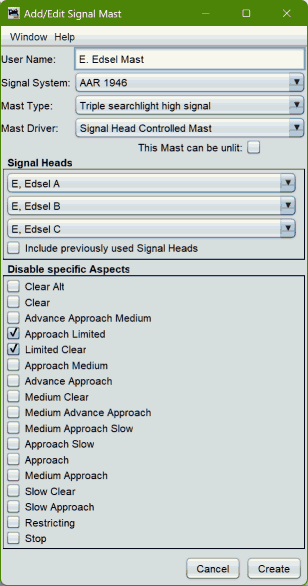
To create such a mast, the following steps are necessary:
- Create the appropriate signal heads before creating the signal mast.
- Open the Signal Masts Table - via Tools ⇒ Tables ⇒ Signal Masts.
- Activate the "Add..." button (at the bottom of the Signal Masts table window).
- Enter an appropriate, meaningful User Name, such as "E. Edsel Mast"
- Select the signaling system. In this case, the railroad uses "AAR-1946" signaling.
- Select the appropriate mast type. In this case, the mast is a "triple searchlight high signal" mast.
- Specify the "Mast Driver" as "Signal Head Controlled Mast". This indicates that the mast will control the connected hardware via the defined signal heads.
- Specify if the mast will be allowed to be "unlit" (i.e. "Dark") via the
"This mast can be unlit" checkbox. Allowing a mast to be "unlit"
is useful when implementing "approach lighting".
Since the example head is a 3-head signal, and in US-prototype signaling, the 3-head signal mast is typically used as a "home" signal at an "interlocking", and since most US-prototype railroads keep their "home" signals lit constantly, the example leaves the checkbox un-checked. - Specify the applicable "Signal Heads". Note that the top-most entry corresponds to the head at the top of the mast. The next-lower entry corresponds to the next-lower head on the mast, etc., as appropriate for the mast type.
- You may place a check-mark in the box labeled "Include previously used Signal Heads" in order to include, in the "drop-down" signal head lists, those signal heads which have already been assigned to a JMRI signal mast. Since it is very rare that any one JMRI signal head's indication can be used on more than one signal mast, it is generally best to leave this box un-checked.
- In the "Disable Specific Aspects" section, you may prevent the signaling logic from displaying one or more of the mast's possible aspects by placing a check-mark next to the aspect(s) to be disabled. In this example, the "Limited"-type aspects are not appropriate, so they have been "check-mark"ed.
- When satisfied with the signal mast configuration, activate the "Create" button at the bottom of the "Add/Edit Signal Mast" window.
In the example, the mast will always be "lit", because the "This mast may be Unlit" feature has not been enabled (has not been "check-marked"). This choice makes sense for the type of signaling which is being implementing for this mast. Other masts might make use of the "Unlit" feature, perhaps for so-called "approach lighting".
Once the JMRI Signal Mast has been configured, any change to the signal mast's "Appearance" will cause the associated JMRI Signal Head object(s) to be changed to the individual head aspect(s) to match the mast's definition for that aspect. Any such Signal Head aspect change(s) will be propagated, under the JMRI "Signal Head" object's direction, to the appropriate signaling hardware (in this case, the SE74), so that the hardware may update its outputs based on the control information which has been conveyed to it.
This means that you can test the JMRI configuration of your SE74 hardware using the following techniques. (They also apply to other signaling configurations, too!)
- You may test JMRI's ability to update the appropriate JMRI Signal Head object(s) by changing the "Appearance" value for the JMRI Signal Mast object in the JMRI Signal Masts table. Change the "appearance" of the signal mast object, then check the Signal Heads table to see that the appropriate head(s) have been changed to the appropriate aspect(s).
- Once you know that the JMRI Signal Head objects are properly controlled by the JMRI Signal Mast "Appearance" setting, you can then check that the JMRI Signal Mast "Appearance" setting has the appropriate effect on the SE74-controlled signal. Change the mast's "appearance" value and then check that the physical signal changes to the appropriate "aspect".
- Update the icon on the panel to show the appropriate mast aspect: Green over Yellow over Red.
- Propagate the appropriate "appearance" values to each of the Signal
Head objects associated with the mast:
- "E. Edsel A" head to "Green"
- "E. Edsel B" head to "Yellow"
- "E. Edsel C" head to "Red"
- Propagate the changes to the signal head Appearance values to the hardware, using the mechanisms appropriate for each head and as defined by the JMRI "Signal Head" definition.

Note that any change to the "Appearance" value for an individual Signal Head object will propagate to the appropriate hardware, but a change of a JMRI Signal Head object's Appearance will not propagate to a JMRI "Signal Mast" object. This is a characteristic of the implementation of the "Signal Head Controlled Mast" type of JMRI Signal Mast.
Controlling SE74 "turnout" outputs
JMRI may control the SE74's "turnout" outputs just like it controls any other Turnout - via a JMRI "Turnout" object. In general, JMRI Turnout objects are defined in the JMRI "Turnouts" table, and are discussed elsewhere.
JMRI's LocoNet mechanisms provide a mechanism where JMRI can "discover" LocoNet-connected turnouts. That mechanism is able to discover SE74-related turnout objects, and will do so when the SE74 is powered and is connected to LocoNet when JMRI starts up with a live connection to that LocoNet.
SE74 inputs
While the SE74's inputs may be used with JMRI, the behaviors of the SE74s inputs, at least for SE74 firmware versions available to the date of this writing, are "odd". In general, the SE74 input pin behaviors do not match the behaviors of any previous Digitrax product. The SE74 "SWx" input pins "sort-of" behave like the similarly-named DS64 input pins do when the DS64 is in configured one way. The "SENSx" pins "sort-of" behave like the "AUXx" DS64 input pins do for other DS64 configurations.
With SE74 firmware implementations available in early 2023, the "default" values of SE74 OpSws 11 and 30 result in the SENSx input pins generating LocoNet messaging which is suitable for "general-purpose" sensor input. Those inputs will be reflected as four JMRI "Sensor" objects, with sensor hardware addresses of:
| Sensor | Hardware Address |
|---|---|
| SENS1 | hardware address = (2*(SE74 base address)) - 1 |
| SENS2 | hardware address = (2*(SE74 base address)) + 1 |
| SENS3 | hardware address = (2*(SE74 base address)) + 3 |
| SENS4 | hardware address = (2*(SE74 base address)) + 5 |
Some examples include:
| Base Address | Input | Hardware Address |
|---|---|---|
| 253 (factory default) | SENS1 | 505 |
| SENS2 | 507 | |
| SENS3 | 509 | |
| SENS4 | 511 | |
| 254 | SENS1 | 507 |
| SENS2 | 508 | |
| SENS3 | 511 | |
| SENS4 | 513 | |
| 255 | SENS1 | 509 |
| SENS2 | 511 | |
| SENS3 | 513 | |
| SENS4 | 515 |
SE74 Routes
The SE74 provides "route" functionality, where each of 8 routes may be configured with a "trigger" switch control, and up to 7 additional switch control messages to send when that trigger switch control is seen as a message on LocoNet. JMRI does not have a tool for configuring the SE74's "routes" functionality at this time. Instead, use the mechanisms described in the SE74 manual.
JMRI may trigger an SE74 route by sending a LocoNet switch control message which matches the "trigger" entry for any one of the routes configured in the SE74.
LocoNet® is a registered trademark of Digitrax, Inc.